Category: Uncategorized

  • Smart Multi-Mode Gateway for Tuya Devices: Zigbee 3.0, Bluetooth Mesh, App Control, and Voice Automation

    Smart Multi-Mode Gateway for Tuya Devices: Zigbee 3.0, Bluetooth Mesh, App Control, and Voice Automation

    Introduction

    A smart home can start with a single connected light bulb or sensor, but as more devices are added, managing different communication technologies can become increasingly complicated. One device may use Wi-Fi, another may use Zigbee, while another depends on Bluetooth Mesh. Without a suitable hub, these devices may not be able to communicate with each other or participate in the same automation system.

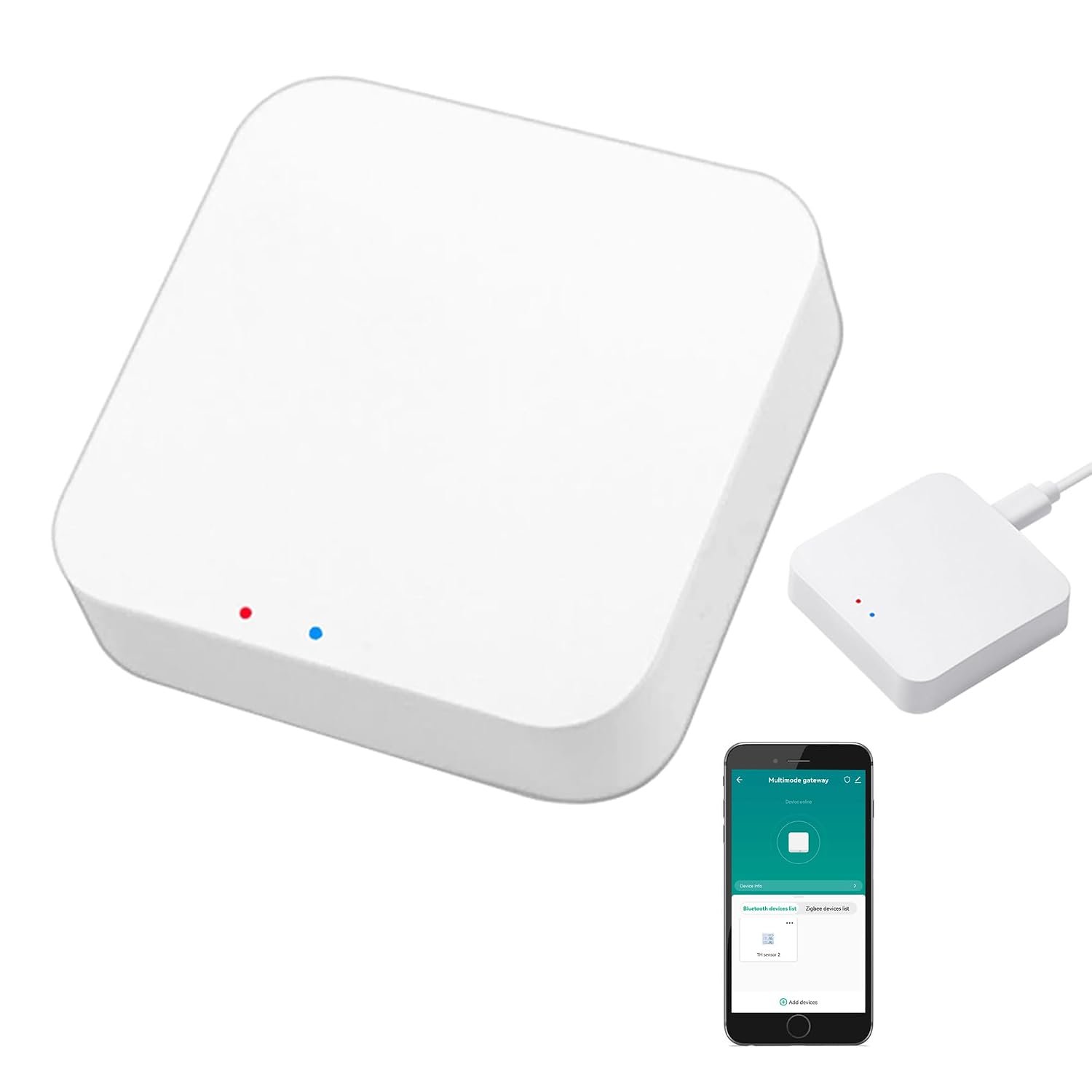
    The Smart Multi-Mode Gateway associated with Amazon listing B0D2D89SFQ is designed to address this problem by acting as a central bridge for compatible Tuya Smart and Smart Life devices. The device supports Zigbee 3.0 and Bluetooth Mesh communication and connects the smart-home network to a 2.4 GHz Wi-Fi network. Product documentation identifies the gateway as a control center for compatible smart-home devices and lists Tuya Smart/Smart Life as its application environment.

    The important limitation is also contained in the product title itself: this gateway is intended for Tuya-compatible devices. It should not be treated as a universal smart-home hub capable of automatically connecting every Zigbee, Bluetooth, or Wi-Fi product from every manufacturer.

    That distinction matters because protocols such as Zigbee and Bluetooth describe how devices communicate, but compatibility also depends on the software ecosystem, device profiles, firmware, and manufacturer implementation.

    The gateway’s purpose is therefore best understood as a central communication layer for a Tuya-based smart home. Compatible sensors, switches, lights, plugs, and other devices can communicate with the hub, while the hub provides app-based management, automation, grouping, and supported voice-control integration with platforms such as Amazon Alexa and Google Home.

    This article explains how a Tuya multi-mode gateway works, what Zigbee 3.0 and Bluetooth Mesh contribute to the system, how the Smart Life and Tuya Smart apps fit into the setup, and what users should consider before building a smart-home network around this type of gateway.

    What Is a Smart Multi-Mode Gateway?

    A smart gateway is essentially a communication bridge.

    Instead of every smart device connecting directly to the home’s Wi-Fi router, compatible devices can communicate with a hub using another wireless protocol. The gateway then connects those devices to the home network and the associated smart-home application.

    The B0D2D89SFQ gateway is designed around this concept.

    Available product documentation identifies support for:

    • Zigbee 3.0
    • Bluetooth Mesh
    • 2.4 GHz Wi-Fi
    • Tuya Smart
    • Smart Life
    • Alexa voice control
    • Google Home integration
    • Smart-home automation
    • Group control
    • Remote app management

    The product listing specifically describes support for up to 128 Tuya smart-home devices, including examples such as Zigbee motion sensors, leak detectors, finger robots, door sensors, thermometers, and window sensors.

    The gateway itself is a small device. Supplier documentation lists the model as Multi-mode Gateway-1, with dimensions around 1.8 × 1.79 × 1.1 inches and a weight of approximately 1.41 ounces.

    Its compact size allows it to be placed near networking equipment or in another suitable indoor location without taking up much space.

    Key Features

    Zigbee 3.0 Connectivity

    Zigbee is one of the primary communication technologies supported by the gateway.

    Zigbee is designed specifically for low-power smart-home and IoT devices. It is commonly used by sensors, switches, lighting products, plugs, buttons, and similar accessories.

    Compared with connecting every device directly to Wi-Fi, a Zigbee-based architecture can provide a separate wireless network for compatible smart-home accessories.

    The gateway acts as the central connection point between those devices and the Tuya ecosystem.

    This can be particularly useful when a household contains several sensors.

    For example, a smart home might have:

    • Door sensors
    • Window sensors
    • Motion sensors
    • Water-leak sensors
    • Temperature sensors
    • Smart switches
    • Smart plugs
    • Zigbee lights

    Instead of requiring every sensor to maintain an individual Wi-Fi connection, compatible Zigbee devices communicate with the gateway.

    Bluetooth Mesh Support

    The gateway also supports Bluetooth Mesh, specifically Bluetooth SIG Mesh according to Tuya’s multi-mode gateway documentation.

    Bluetooth Mesh is different from ordinary Bluetooth connections used for headphones or keyboards.

    Bluetooth Mesh is designed for networks containing multiple devices that can participate in a distributed communication structure.

    This can be useful for smart-home accessories where several Bluetooth-based devices need to operate together.

    The gateway allows supported Tuya Bluetooth Mesh devices to become part of the broader Tuya smart-home environment.

    The important word is supported.

    A generic Bluetooth device should not automatically be assumed to work with this hub. The product is designed around Tuya-compatible Bluetooth Mesh devices rather than general-purpose Bluetooth accessories.

    2.4 GHz Wi-Fi

    The gateway uses 2.4 GHz Wi-Fi for its connection to the home network.

    The available documentation identifies Wi-Fi support using 802.11b/g/n at 2.4 GHz.

    This is common for smart-home hubs because 2.4 GHz Wi-Fi generally provides useful coverage through walls and is widely supported by consumer routers.

    When setting up the gateway, the smartphone and router configuration should be compatible with the required 2.4 GHz network.

    Users with routers that combine 2.4 GHz and 5 GHz networks under one name may occasionally need to adjust network settings during setup, depending on how the router handles device onboarding.

    Tuya Smart and Smart Life App Support

    The gateway is designed to work with the Tuya Smart and Smart Life applications.

    These applications provide the software interface for adding compatible devices, organizing rooms, creating automations, and controlling connected equipment.

    The product information states that the hub supports adding devices, device reset, third-party control, group control, and remote management through the app.

    This means the gateway is not intended to be configured entirely through physical buttons.

    Instead, the app becomes the central management interface.

    A typical smart-home structure could look like this:

    Smartphone → Tuya/Smart Life App → Gateway → Zigbee/Bluetooth Mesh Devices

    The gateway therefore acts as the communication bridge between the application and compatible low-power devices.

    Remote App Control

    One of the practical benefits of a network-connected gateway is remote access.

    Once the system has been configured correctly, compatible devices can be managed through the Tuya Smart or Smart Life application even when the user is away from home. Product documentation describes remote control as one of the gateway’s functions.

    For example, a user could check a connected smart plug or lighting device while away from the house.

    Remote access can also be useful for automation management.

    However, remote functionality depends on the gateway, network connection, cloud service, and the particular device being controlled. A local device does not automatically become independently controllable from anywhere simply because it is connected to a hub.

    Voice Control Through Alexa and Google Home

    The gateway is designed to integrate with voice assistants including Amazon Alexa and Google Home.

    The product information describes voice control for supported connected devices, including examples such as switching a smart plug or controlling a finger robot.

    This allows compatible devices to become part of a voice-controlled home.

    For example, a user might create a voice command that activates a group of lights or switches a compatible smart plug.

    The exact voice commands depend on the device type and how it appears in the connected voice platform.

    Not every Tuya device necessarily exposes every function through Alexa or Google Home.

    Support for Up to 128 Tuya Devices

    The product listing states that the gateway can support up to 128 Tuya smart-home devices.

    A capacity figure like this can be useful for understanding the intended scale of the hub.

    It suggests that the gateway is designed for more than a handful of accessories.

    A larger installation might include:

    • Multiple rooms
    • Several motion sensors
    • Door and window sensors
    • Smart plugs
    • Lighting controls
    • Temperature sensors
    • Leak detectors
    • Other compatible Tuya accessories

    However, the maximum device count should not be interpreted as a guarantee that every installation will behave identically at that maximum.

    Wireless range, network conditions, device types, firmware, automation complexity, and the physical layout of a building can all influence practical performance.

    Smart Home Automation

    Automation is one of the main reasons to use a gateway instead of controlling every smart device individually.

    Tuya’s multi-mode gateway architecture supports local linkage and scenario-based control, allowing connected devices to interact based on predefined conditions.

    This means one device can become the trigger for another.

    For example:

    Motion detected → hallway light turns on

    Or:

    Door opened → selected light activates

    Or:

    Water leak detected → notification is generated

    Or:

    Temperature condition met → compatible smart device changes state

    The actual automation options depend on the devices involved and what functions the Tuya platform exposes for them.

    Group Control

    The system also supports grouping compatible devices.

    Grouping can simplify management when several devices serve the same purpose.

    For example, multiple lights in a room can be organized into a group.

    Instead of opening each device individually, a user can control the group as a unit.

    This can be useful in larger homes where there are many individual devices.

    Local Smart-Home Linkage

    Tuya’s multi-mode gateway architecture includes support for local linkage and scenario control.

    Local automation can be useful because some device-to-device actions do not necessarily need to depend on a remote server for every individual interaction.

    However, the term “local” should be interpreted carefully.

    The gateway still operates as part of the Tuya ecosystem, and not every feature or remote-access function is necessarily independent of internet or cloud services.

    Users who specifically require completely offline smart-home operation should investigate the individual device and automation requirements rather than assuming that a gateway automatically provides a fully local system.

    How It Can Be Used

    Smart Lighting

    One of the most common applications for a Zigbee and Bluetooth Mesh gateway is smart lighting.

    A home can contain compatible bulbs, switches, dimmers, and other lighting controls.

    Once connected to the gateway, these devices can be organized through the Tuya or Smart Life app.

    For example, a homeowner could create a room called “Living Room” and add compatible lights to that room.

    The same approach can be used for:

    • Bedroom
    • Kitchen
    • Hallway
    • Office
    • Garage
    • Outdoor areas

    Grouping makes everyday control easier, particularly when several lights need to respond together.

    Motion-Activated Lighting

    Motion sensors can be used as triggers for automation.

    A hallway is a straightforward example.

    A Zigbee motion sensor could detect movement, and the gateway could trigger a compatible smart light.

    This can reduce the need to manually switch lights on when walking through the area.

    A timer can also be incorporated so the light turns off after a defined period.

    The exact automation options depend on the sensor and lighting devices being used.

    Door and Window Monitoring

    Zigbee door and window sensors can provide information about the state of entrances.

    A sensor can report whether a door or window is open or closed.

    That information can become a trigger for another smart-home action.

    For example, opening a door at night could trigger a light in an entrance area.

    A user could also configure notifications for selected sensor events.

    This does not turn the gateway into a professional security system, but it can provide a layer of household awareness.

    Water-Leak Detection

    Water-leak sensors are another practical application.

    A sensor placed near a washing machine, water heater, sink, or other vulnerable location can detect the presence of water.

    The gateway can receive the sensor’s information and use the Tuya system to trigger a notification or another supported automation.

    This is particularly useful because water leaks can occur in areas that are not constantly monitored.

    Temperature Monitoring

    Compatible temperature sensors can report environmental conditions.

    This information can be used for monitoring or automation.

    For example, a user might create a rule based on a room becoming warmer or colder than a selected threshold.

    The gateway does not itself measure room temperature unless an appropriate sensor is connected.

    The sensor supplies the environmental information, while the gateway coordinates communication.

    Smart Plug Automation

    Smart plugs are another common Tuya device category.

    A user can connect a compatible plug and then control it through the Tuya or Smart Life application.

    A plug can also participate in routines.

    For example:

    • Turn a lamp on at sunset
    • Turn a device off at bedtime
    • Activate a compatible appliance at a scheduled time
    • Turn a connected device off when leaving home

    Users should be cautious when automating appliances that generate heat or have other safety considerations.

    Bluetooth Mesh Accessories

    The Bluetooth Mesh capability allows compatible Tuya Bluetooth Mesh accessories to participate alongside Zigbee devices.

    This can be useful when a household already owns devices based on different supported protocols.

    Instead of installing one gateway for Zigbee and another for Bluetooth Mesh, a compatible multi-mode gateway can provide a common control point.

    This is one of the main reasons multi-mode hubs exist.

    Creating Smart-Home Scenes

    Scenes can make a collection of individual devices behave like a coordinated system.

    Imagine a “Leaving Home” scene.

    It could potentially:

    • Turn selected lights off
    • Switch compatible plugs off
    • Check selected sensor states
    • Trigger other supported actions

    A “Night” scene could:

    • Turn off living-room lights
    • Leave a hallway light on
    • Activate selected security-related sensors
    • Adjust other compatible devices

    An “Arrive Home” scene could:

    • Turn on selected lights
    • Activate a smart plug
    • Trigger another compatible device

    The actual actions available depend on the Tuya devices connected to the gateway.

    Scenes should be designed around realistic household routines rather than automating everything simply because automation is available.

    Who It May Be Suitable For

    Tuya Smart and Smart Life Users

    The clearest audience for this gateway is people building their smart home around Tuya-compatible devices.

    The product explicitly states that it supports Tuya Smart devices, and third-party listings emphasize that non-Tuya devices are not supported.

    If a household already contains compatible Tuya sensors, switches, plugs, or lights, a multi-mode gateway can provide a centralized connection point.

    Users With Zigbee and Bluetooth Mesh Devices

    The gateway can be useful when a smart home contains both supported Zigbee and Bluetooth Mesh accessories.

    Instead of treating the protocols as completely separate systems, the gateway brings them into the same Tuya environment.

    People Building a Larger Smart Home

    The stated capacity of up to 128 compatible devices makes the gateway relevant to larger installations than a simple single-device setup.

    It can be used as the central point for multiple rooms and different categories of smart-home accessories.

    Users Interested in Voice Control

    People who already use Alexa or Google Home may appreciate the ability to expose compatible Tuya devices to those platforms.

    Voice control can be especially useful for lighting, plugs, and simple device functions.

    Users Who Want App-Based Remote Access

    The Tuya Smart and Smart Life applications allow compatible devices to be managed from a smartphone, including remote access where supported.

    This can be useful for users who want to check or control devices while away from home.

    Important Things to Consider

    Tuya Compatibility Is the Main Limitation

    The most important consideration is the phrase “ONLY Support Tuya Smart Devices.”

    The gateway should not be treated as a general-purpose Zigbee coordinator that automatically supports every Zigbee product on the market.

    A device can use Zigbee 3.0 and still not be supported by this particular gateway’s Tuya environment.

    The same principle applies to Bluetooth Mesh.

    Before purchasing additional devices, verify that the specific product is compatible with the Tuya ecosystem and the gateway.

    Zigbee Is Not the Same as Universal Zigbee Compatibility

    Zigbee is a communication protocol, but compatibility also involves profiles, device types, manufacturer implementations, and ecosystem software.

    This distinction is important when building a smart home.

    A generic Zigbee sensor may communicate using Zigbee technology but still not appear correctly in a Tuya-based system.

    Therefore, the safest approach is to verify compatibility at the device level.

    Bluetooth Mesh Is Not Ordinary Bluetooth

    A common misunderstanding is that Bluetooth support means the gateway can connect to any Bluetooth product.

    It cannot.

    The product is designed for compatible Bluetooth Mesh smart-home devices within the Tuya ecosystem.

    A Bluetooth speaker, wireless keyboard, smartphone accessory, or other ordinary Bluetooth product is not automatically compatible.

    2.4 GHz Wi-Fi Is Required

    The gateway uses 2.4 GHz Wi-Fi. Product documentation specifically identifies 2.4 GHz 802.11b/g/n networking.

    Users should therefore ensure that their router provides a suitable 2.4 GHz network during setup.

    If a router is configured to hide or disable its 2.4 GHz band, the gateway may not be able to complete normal setup.

    Network Configuration Matters

    Smart-home hubs can be sensitive to unusual router configurations.

    During setup, it is generally useful to ensure:

    • The router is operating normally.
    • The 2.4 GHz network is available.
    • The smartphone has access to the same home network.
    • The gateway receives stable power.
    • The Tuya or Smart Life app has the necessary permissions.

    The product manual also describes setup procedures involving the local Wi-Fi environment and gateway pairing.

    Wireless Range Is Not Unlimited

    The gateway communicates wirelessly with connected devices.

    Walls, floors, metal structures, furniture, electrical equipment, and building construction can influence signal quality.

    Zigbee networks can use mesh behavior where supported devices relay communication, but the exact behavior depends on the device types in the network.

    Battery-powered sensors may not function as routers in the same way powered Zigbee devices can.

    Therefore, a larger house may require careful device placement.

    The Maximum Device Count Is Not a Guarantee of Performance

    The stated 128-device capacity describes the intended supported device count.

    It should not be interpreted as a promise that every possible combination of 128 devices will have identical performance.

    A network containing 128 simple sensors may behave differently from one containing numerous devices generating frequent events and complicated automations.

    Smart-home architecture should be designed according to the actual requirements of the installation.

    Internet Access and Local Automation Are Different

    Tuya’s gateway architecture supports local linkage and remote control, but those are not the same thing.

    A local automation can sometimes allow devices to respond to each other through the gateway without requiring a remote cloud interaction for every event.

    Remote app access, however, normally involves network and cloud connectivity.

    If internet service is unavailable, some local functionality may remain available while remote control becomes unavailable.

    Users who require complete offline operation should investigate the specific local capabilities of every device and automation.

    Power Requirements

    Available documentation identifies a DC 5V/1A power requirement for the gateway.

    The product package is described as including the gateway, a USB power supply line, and a user manual, although package contents can vary by seller or regional listing.

    The gateway should be placed where a suitable power source is continuously available.

    Indoor Operating Conditions

    The available product documentation lists an operating temperature range and humidity range intended for indoor environments. One manual source identifies approximately -10°C to 55°C and 10%–90% relative humidity without condensation.

    The hub should therefore be protected from water, excessive humidity, and unsuitable environmental conditions.

    Comparison of General Smart-Home Gateway Categories

    Multi-Mode Gateway vs Wi-Fi-Only Hub

    A Wi-Fi-only smart-home hub communicates primarily with devices that connect through Wi-Fi.

    A multi-mode gateway can connect supported devices using different protocols, such as Zigbee and Bluetooth Mesh, while using Wi-Fi as the connection to the home network.

    This can reduce the need to use separate gateways for different supported device types.

    The trade-off is that compatibility becomes more dependent on the ecosystem and device profiles.

    Zigbee Gateway vs Bluetooth Mesh Gateway

    A Zigbee-only gateway is focused on Zigbee devices.

    A Bluetooth Mesh gateway focuses on compatible Bluetooth Mesh products.

    A multi-mode gateway combines both communication methods in one device.

    For a household that uses only Zigbee products, the additional Bluetooth Mesh capability may not be important.

    For a mixed Tuya installation, however, having both protocols available can simplify the overall architecture.

    Smart Hub vs Individual Device Connections

    Without a central hub, some smart devices connect directly to Wi-Fi.

    This can be convenient for a small installation.

    However, a larger number of Wi-Fi devices can create a more complicated network and may increase the number of devices communicating directly with the router.

    A gateway-based architecture places many compatible low-power devices behind a central controller.

    This can provide a more structured network design.

    Tuya-Centered Gateway vs Universal Smart-Home Hub

    A Tuya-centered gateway is designed around the Tuya ecosystem.

    A broader smart-home hub may support devices from many manufacturers and protocols.

    The advantage of the Tuya approach is that devices designed for the ecosystem can be managed through a common application and automation framework.

    The limitation is equally important: devices outside the supported ecosystem may not work.

    For this particular product, ecosystem compatibility should be treated as a primary purchasing consideration.

    Setting Up the Gateway

    The setup process generally starts with the network and mobile application.

    Available manuals describe connecting the gateway to power and configuring it with the home’s 2.4 GHz network.

    A typical setup sequence is:

    1. Place the gateway in a suitable indoor location.
    2. Connect it to a stable 5V power source.
    3. Make sure the home’s 2.4 GHz Wi-Fi network is available.
    4. Install Tuya Smart or Smart Life.
    5. Create or sign into the appropriate account.
    6. Add the gateway through the application.
    7. Follow the pairing instructions.
    8. Add compatible Zigbee devices.
    9. Add compatible Bluetooth Mesh devices.
    10. Organize devices into rooms or groups.
    11. Create scenes and automation rules.
    12. Connect Alexa or Google Home if required.
    13. Test individual devices before creating complicated automations.

    Starting with a small number of devices can make troubleshooting easier.

    If a problem occurs, it is much simpler to determine whether the gateway, network, or device is responsible when only a few accessories have been added.

    Building a Smart Home Around the Gateway

    A sensible approach is to begin with the devices that solve actual household problems.

    For example, a basic system might start with:

    • One gateway
    • Two door sensors
    • One motion sensor
    • Two smart lights
    • One smart plug

    Once these devices are functioning correctly, additional sensors and controls can be added.

    This gradual approach helps users understand how the Tuya ecosystem works before introducing dozens of devices.

    It also makes automation easier to maintain.

    A smart-home system can become difficult to troubleshoot when a single complex automation depends on many different sensors, switches, and conditional rules.

    Security and Privacy Considerations

    A smart-home gateway connects physical devices to digital services, so account security matters.

    The gateway should be treated as part of the home’s connected infrastructure.

    Useful practices include:

    • Use a strong and unique account password.
    • Keep the Tuya Smart or Smart Life app updated.
    • Install available gateway firmware updates.
    • Review connected third-party services.
    • Remove old or unused devices.
    • Avoid giving unnecessary account access.
    • Use a secure home Wi-Fi network.
    • Review automation rules periodically.

    Voice assistant integrations also introduce another layer of account management.

    If Alexa or Google Home is connected to the Tuya account, anyone with appropriate access to that smart-home ecosystem may be able to control compatible devices.

    Users should therefore review permissions and connected accounts regularly.

    Maintenance and Troubleshooting

    Smart-home gateways generally require little physical maintenance, but software maintenance can matter.

    If a device stops responding, several areas should be checked:

    Check Power

    Confirm that the gateway has stable power and that its status indicators behave normally.

    Check Wi-Fi

    Verify that the 2.4 GHz network is functioning correctly.

    Check Device Range

    If a Zigbee or Bluetooth Mesh device is far from the gateway, moving it closer can help determine whether range is involved.

    Check Compatibility

    Confirm that the device is still supported by the Tuya ecosystem and that it was added using the appropriate device category.

    Check Firmware

    Firmware updates can address stability, compatibility, and feature issues.

    Re-Pair the Device

    If a sensor or switch was previously connected to another gateway, it may need to be reset before joining the new system.

    The available manual documentation includes device-adding and pairing procedures for the gateway.

    Frequently Asked Questions

    What is the Smart Multi-Mode Gateway?

    It is a smart-home gateway designed to connect compatible Tuya devices using technologies such as Zigbee 3.0 and Bluetooth Mesh while using 2.4 GHz Wi-Fi to connect the gateway to the home network.

    Does it support Zigbee 3.0?

    Yes. Zigbee 3.0 is one of the gateway’s primary supported communication technologies.

    Does it support Bluetooth Mesh?

    Yes. The product supports Bluetooth Mesh for compatible Tuya smart-home devices. Tuya’s multi-mode gateway architecture specifically references Bluetooth SIG Mesh.

    Does it work with Alexa?

    The product listing identifies Alexa voice-control support for compatible Tuya devices.

    Does it work with Google Home?

    Yes, compatible Tuya devices can be integrated with Google Home according to the product information.

    Can it connect any Zigbee device?

    No. This is an important limitation. The product is specifically designed for Tuya-compatible devices, so generic Zigbee compatibility should not be assumed.

    Can it connect ordinary Bluetooth devices?

    No. The Bluetooth capability is intended for compatible Bluetooth Mesh smart-home devices, not general Bluetooth accessories such as headphones or keyboards.

    Which app does the gateway use?

    The product information identifies both Tuya Smart and Smart Life as supported applications.

    Does the gateway use 2.4 GHz Wi-Fi?

    Yes. Available documentation identifies 2.4 GHz 802.11b/g/n Wi-Fi.

    How many devices can it support?

    The product listing states support for up to 128 Tuya smart-home devices.

    Can I control my devices remotely?

    Compatible devices can be managed remotely through the Tuya Smart or Smart Life application when the required network and cloud connectivity are available.

    Can devices communicate automatically with each other?

    Yes. Tuya’s multi-mode gateway architecture supports device linkage, local scenarios, and group control for compatible devices.

    Can a motion sensor trigger a light?

    A compatible Tuya motion sensor can be used as a trigger for a compatible smart light through the automation system. The exact options depend on the devices and available automation functions.

    Can it be used for door sensors?

    Yes. Compatible Tuya Zigbee door and window sensors are among the types of devices identified for this gateway.

    Can it work with leak detectors?

    Yes. The product listing specifically gives leak detectors as an example of compatible Tuya smart-home devices.

    Is the gateway wireless?

    The gateway communicates wirelessly with compatible Zigbee and Bluetooth Mesh devices and connects to the home network through 2.4 GHz Wi-Fi according to the available documentation.

    Does it require an Ethernet cable?

    Available documentation for this model describes Wi-Fi networking rather than requiring an Ethernet connection. The setup documentation specifically references connection to a 2.4 GHz Wi-Fi router.

    Does it work without internet?

    Some local device linkage can operate through the gateway, and Tuya describes local linkage and scenario control in its multi-mode gateway architecture. However, remote app access and cloud-dependent features require network connectivity.

    Is this a universal smart-home hub?

    No. It is more accurate to describe it as a Tuya-focused multi-mode gateway. Its support for Zigbee and Bluetooth Mesh does not mean that every device using those protocols will work.

    Is it suitable for a large smart home?

    The stated capacity of up to 128 compatible Tuya devices makes it suitable for installations that extend beyond a few devices. Actual performance depends on the device mix, wireless environment, network conditions, and automation complexity.

    Conclusion

    The Smart Multi-Mode Gateway associated with Amazon ASIN B0D2D89SFQ is designed to serve as a central bridge for a Tuya-based smart home. Its combination of Zigbee 3.0, Bluetooth Mesh, and 2.4 GHz Wi-Fi allows compatible devices using different communication technologies to participate in a shared smart-home environment.

    Its main role is not to replace every smart-home platform but to connect compatible Tuya devices through the Tuya Smart or Smart Life ecosystem. Supported devices can include sensors, smart lights, smart plugs, switches, leak detectors, door sensors, temperature sensors, and other compatible accessories.

    The multi-mode architecture can be useful when a household contains both Zigbee and Bluetooth Mesh products. Rather than managing completely separate systems, compatible devices can be organized through one application and used together in scenes and automation rules.

    Voice integration adds another control option. Compatible Tuya devices can be exposed to platforms such as Amazon Alexa and Google Home, allowing supported functions to be operated through voice commands.

    The gateway also supports remote app management, grouping, device linkage, and automation. Tuya’s own multi-mode gateway architecture emphasizes local linkage and scenario control, making the gateway more than a simple wireless bridge.

    At the same time, compatibility is the most important consideration. The product is specifically intended for Tuya Smart devices, and Zigbee 3.0 or Bluetooth Mesh compatibility alone does not guarantee that a device from another ecosystem will work.

    For anyone building a Tuya-centered smart home, understanding that distinction can make the system easier to plan. Start with compatible devices, verify the required protocol, establish reliable 2.4 GHz Wi-Fi coverage, and then build automations gradually around genuine household needs.
    You can check more details on Amazon here.

  • Tapo H110 Smart IR & IoT Hub: Universal Remote Control, Matter Integration, and Smart Home Uses

    Tapo H110 Smart IR & IoT Hub: Universal Remote Control, Matter Integration, and Smart Home Uses

    Introduction

    Many homes contain a mixture of modern smart devices and older appliances that were never designed to connect to a smart-home platform. A television may still use an infrared remote. An air conditioner may have its own handheld controller. A fan, projector, set-top box, or other appliance can require another remote, another set of batteries, and another control method.

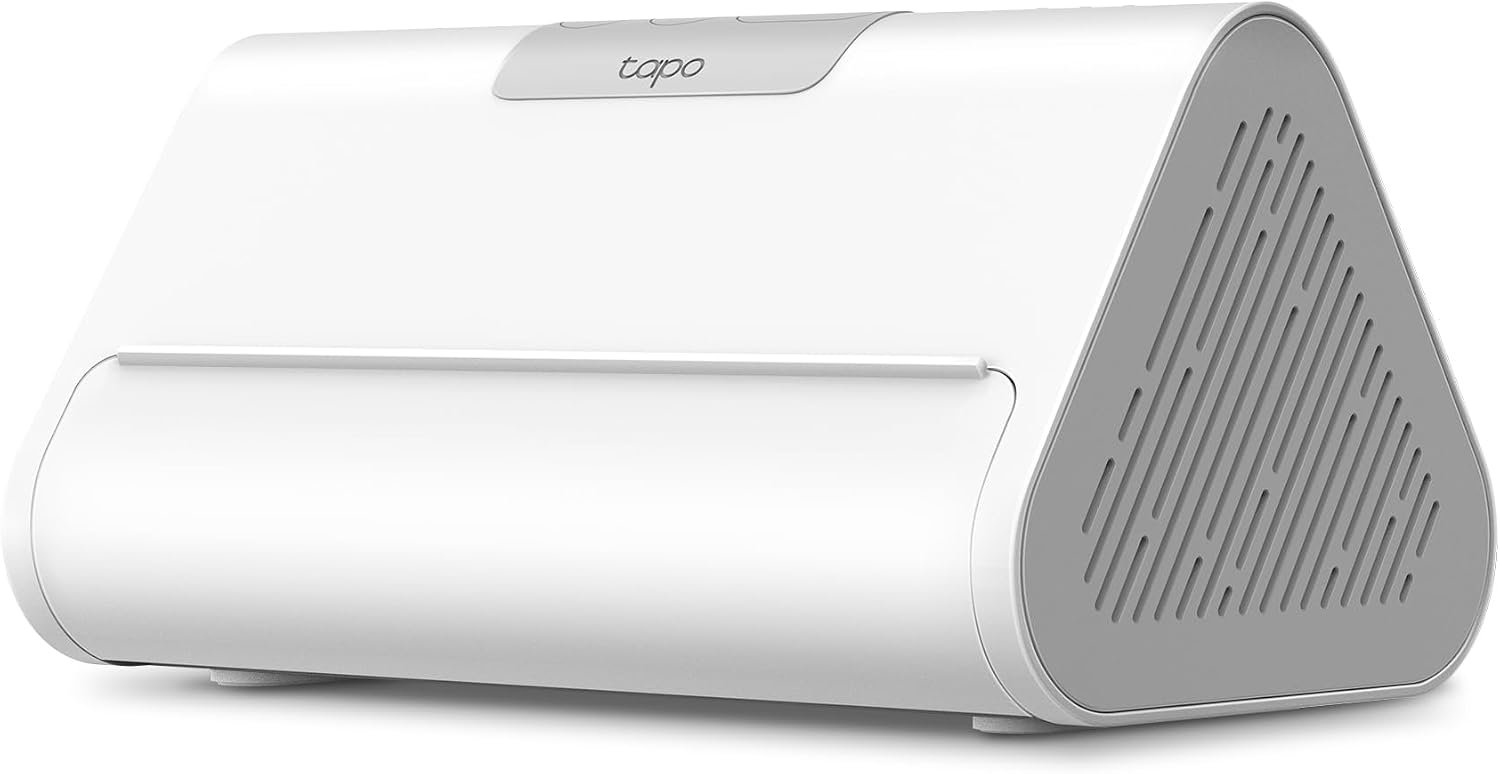
    The Tapo H110 Smart IR & IoT Hub is designed to bring many of these traditional infrared-controlled appliances into a more connected smart-home environment. Instead of replacing every existing appliance with a new smart model, the H110 uses an integrated infrared transmitter to communicate with compatible IR devices while also serving as a hub for supported Tapo accessories. TP-Link describes the H110 as a Matter-certified connection center that can integrate supported IR appliances and Tapo sensors into compatible smart-home ecosystems.

    The device is therefore different from a conventional smart plug. A smart plug controls the electrical power going to an appliance, while an infrared hub can send commands similar to those produced by an appliance’s original remote control. This distinction is particularly important for products such as air conditioners and televisions, where turning power on and off is only a small part of the available functionality.

    The H110 can also connect to supported Tapo accessories through its low-power wireless connection and can participate in smart actions involving sensors and other compatible devices. TP-Link lists features such as scheduling, location-based control, voice control, app-based remote control, and offline control within the same local network.

    Another important aspect is Matter support. Matter is designed to improve interoperability between smart-home ecosystems, and the H110 can expose supported devices and functions to platforms such as Apple Home, Google Home, Amazon Alexa, and SmartThings through compatible Matter controllers. The exact functionality available can depend on the appliance type, connected ecosystem, and current software support.

    This makes the H110 an interesting category of smart-home accessory: it can connect traditional infrared appliances with newer IoT devices without requiring the appliances themselves to have built-in Wi-Fi.

    This guide explains how the Tapo H110 works, its main features, practical applications, Matter integration, infrared compatibility, sensor automation, limitations, and the factors worth considering before adding it to a smart-home setup.

    What Is the Tapo H110?

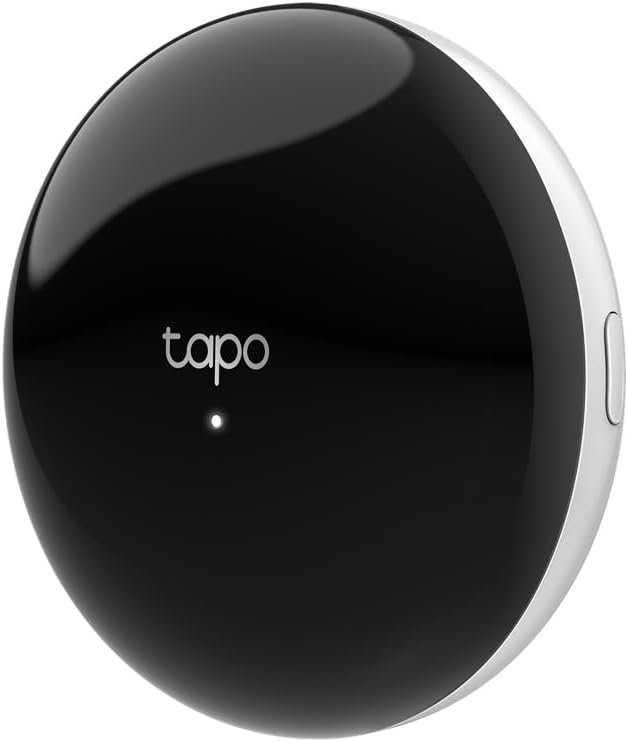
    The Tapo H110 is a compact Smart IR & IoT Hub from TP-Link’s Tapo ecosystem.

    It combines two primary functions.

    The first is an infrared universal remote system. The built-in IR transmitter can send commands to supported appliances that normally use infrared remote controls.

    The second is an IoT hub for compatible Tapo accessories. The H110 can communicate with supported low-power Tapo devices such as sensors and use their information as part of smart-home actions.

    TP-Link’s current product information describes support for more than 8,000 brands and a range of appliance categories. The exact number of supported appliance types varies between regional product pages and documentation, so compatibility should be checked for the specific hardware version and appliance rather than assuming every IR product is supported.

    The H110 uses 2.4 GHz Wi-Fi for network communication, while its supported Sub-1 GHz wireless connection is used for compatible Tapo accessories. Bluetooth is used for setup rather than as the primary communication method. TP-Link’s datasheet identifies 922 MHz for US and Japanese versions and 868 MHz for European versions.

    The physical unit measures approximately 79 × 79 × 32 mm, making it relatively compact for placement near entertainment equipment or in another suitable indoor location. It is powered through USB-C using a 5V/2A power supply or an adapter capable of providing the required current. The current quick-start documentation notes that the USB adapter is not included.

    Key Features

    Universal Infrared Remote Control

    The most distinctive feature of the H110 is its integrated infrared transmitter.

    Many traditional appliances use infrared communication. When you press a button on a conventional remote, the remote emits an infrared signal containing the command. The appliance’s IR receiver interprets that signal and performs the requested action.

    The H110 uses the same basic concept.

    After a compatible appliance is configured in the Tapo app, the H110 can send supported commands to that appliance.

    This can eliminate the need to keep several physical remotes within reach.

    Depending on compatibility, the H110 can be used with categories such as:

    • Air conditioners
    • Televisions
    • Fans
    • Projectors
    • Set-top boxes
    • DVD players
    • Air purifiers
    • Humidifiers
    • Robot vacuums
    • Certain lighting products
    • Amplifiers
    • Electric heaters
    • Other supported infrared appliances

    TP-Link’s datasheet lists 18 IR appliance categories for the documented H110 hardware, while current regional marketing pages can list additional categories. This is one reason checking the product’s regional compatibility information is important.

    Broad Brand Compatibility

    TP-Link describes the H110 as supporting more than 8,000 brands of infrared appliances. The company’s product information also states that the compatibility database is updated periodically.

    A large IR database is useful because infrared remotes can differ significantly between manufacturers and appliance models.

    However, a large brand count should not be interpreted as a guarantee that every model from every listed manufacturer will support every command.

    An appliance may support basic power and mode commands while offering more limited support for specialized buttons. This is especially relevant for air conditioners, which can have complicated remote-control states involving temperature, fan speed, operating mode, swing position, timers, and other settings.

    The correct approach is to verify the exact appliance compatibility whenever possible.

    Easy Appliance Pairing

    TP-Link has designed the H110 setup process around the Tapo application.

    The company explains that users can follow the app instructions, press buttons on the original appliance remote, and perform several button tests to pair the appliance.

    This approach is useful when the exact appliance model is difficult to locate in a database.

    Instead of relying exclusively on a model number, the pairing process can help identify and test the appropriate IR command set.

    This can be particularly helpful for older appliances where documentation is no longer readily available.

    Remote App Control

    Once a compatible infrared appliance is configured, the Tapo app can provide a digital control interface.

    This changes the experience from carrying multiple physical remotes to managing supported appliances through a smartphone.

    For example, someone who has left home could potentially check the Tapo app and turn off a compatible air conditioner remotely, provided the system and appliance support the relevant function and the hub has the necessary connectivity. TP-Link specifically describes remote app control as one of the H110’s capabilities.

    Remote access can be useful for appliances where forgetting to turn something off is inconvenient.

    It is important, however, to distinguish remote command transmission from physical confirmation. With an infrared appliance, the H110 sends the programmed command; it does not necessarily provide independent confirmation that the appliance actually changed state.

    Voice Control

    The H110 can bring compatible IR appliances into voice-controlled smart-home environments.

    TP-Link documents voice control through platforms such as Alexa, Google Assistant, and Siri, with commands varying according to the appliance type and integration method.

    This can be useful when the original remote is misplaced or when controlling an appliance from across a room.

    For example, a compatible television could be controlled through a supported voice assistant, while a supported air conditioner could respond to temperature or mode commands.

    The available commands are not necessarily identical across every platform. Some appliance types may expose more functions than others.

    Matter-Certified Smart-Home Integration

    Matter is one of the H110’s most important smart-home features.

    Matter is designed to provide a common standard through which compatible smart-home devices can communicate with ecosystems from different manufacturers.

    TP-Link describes the H110 as a Matter-certified connection center capable of integrating supported IR appliances and Tapo sensors into Matter ecosystems.

    The product documentation identifies support involving major ecosystems such as:

    • Apple Home
    • Google Home
    • Amazon Alexa
    • Samsung SmartThings

    The exact setup requirements differ depending on the platform. A compatible Matter controller is required for Matter-based integration, and Apple Home setups can require an appropriate Apple Home hub such as a HomePod or Apple TV with compatible software.

    Matter should not be interpreted as meaning every function of every infrared appliance becomes universally available across all smart-home platforms.

    Matter provides an interoperability framework, but the capabilities exposed to a platform depend on device type, software implementation, and ecosystem support.

    Tapo Sensor Connectivity

    The H110 is also designed to communicate with supported Tapo sensors.

    TP-Link describes its Sub-1 GHz low-power wireless connection as a way to connect Tapo accessories, allowing the hub to serve as a central point for compatible sensors and other devices.

    This opens up a more interesting possibility than simple remote control.

    Instead of merely saying, “Turn on my air conditioner,” a smart-home system can potentially use environmental information to determine when an action should occur.

    For example, a compatible temperature and humidity sensor could provide information that becomes part of an automation involving an IR-controlled air conditioner.

    Smart Actions

    Tapo’s Smart Actions system can combine information from compatible devices and trigger corresponding actions.

    TP-Link gives an example in which a temperature sensor detects that the room has exceeded a specified temperature and the H110 then controls a compatible air conditioner.

    This demonstrates the difference between a universal IR remote and an IoT hub.

    A traditional remote waits for a person to press a button.

    An IoT system can use sensor data, schedules, device states, or other conditions to trigger an action automatically.

    The usefulness of these automations depends on the compatibility of the sensor, appliance, and desired action.

    Custom Scheduling

    The H110 supports schedules for compatible appliances and smart-home actions.

    Scheduling can be useful for repetitive routines.

    For example, users may want a compatible air conditioner to operate around typical arrival times or a television-related device to follow a regular household schedule.

    Scheduling can also help reduce unnecessary manual interaction with frequently used appliances.

    However, schedules should be created carefully for devices where unexpected operation could cause inconvenience or safety concerns.

    Location-Based Control

    TP-Link also lists location control as a feature of the H110.

    The Tapo system can use smartphone location information to trigger certain smart-home behaviors when a user approaches or leaves a defined area.

    This can be useful for comfort-related routines.

    For example, a homeowner could configure a supported system to prepare the home before arrival.

    Location-based automation depends on the appropriate app permissions and smartphone location services, so users should review those settings before relying on geofencing.

    Offline Control

    One useful distinction in TP-Link’s documentation is the H110’s ability to control devices within the same local network when the external network is disconnected.

    This does not mean every feature is available without internet access.

    Instead, the hub can retain certain local control capabilities because devices on the same LAN can continue communicating even when the home’s external internet connection is unavailable.

    Remote control from outside the home, cloud-dependent features, and some third-party integrations may still require internet connectivity.

    Built-In 93 dB Alarm

    The H110 includes a built-in alarm with a specified level of approximately 93 dB, along with multiple ringtone options. TP-Link’s datasheet lists 19 ringtones.

    The alarm can be used as part of supported smart-home notifications and routines.

    This gives the hub another role beyond remote control.

    For example, an automation involving a sensor could potentially produce an audible alert under appropriate conditions.

    Because the sound level is relatively high, the hub should be positioned thoughtfully in a home environment where audible notifications are useful without creating unnecessary disturbance.

    How It Can Be Used

    Turning a Traditional Air Conditioner Into a Connected Appliance

    One of the clearest applications for the H110 is an infrared-controlled air conditioner.

    Many air conditioners already provide extensive functionality through their original remotes, but the appliance itself may not have Wi-Fi.

    The H110 can bridge that gap by transmitting supported IR commands.

    Once configured, users may be able to control functions such as:

    • Power
    • Temperature
    • Operating mode
    • Fan speed
    • Other supported settings

    The exact controls depend on the air conditioner and the command set recognized by the H110.

    This can be especially useful in homes where replacing a functioning air conditioner simply to gain smart features would not be practical.

    Managing a Television Without the Original Remote

    Television remotes are easy to misplace, particularly in homes where several people share the same living space.

    The H110 can provide a centralized alternative for supported infrared television functions.

    Instead of searching for the physical remote, the user can open the Tapo app or use an available voice-control integration.

    The system can be particularly convenient for basic actions such as powering a compatible television on or off or controlling other supported functions.

    Controlling a Fan

    A traditional infrared fan can also potentially become part of a smart-home routine.

    For example, a compatible fan could be included in an evening routine or controlled through a supported voice assistant.

    If a Tapo temperature sensor is also available, environmental conditions can become part of a broader automation strategy.

    The exact fan commands available depend on the original remote and supported IR profile.

    Connecting a Projector

    Home entertainment systems often contain multiple remote-controlled devices.

    A projector can be another candidate for centralized infrared control.

    The H110 can potentially manage supported projector functions while allowing other smart-home routines to interact with the entertainment setup.

    This can reduce the number of physical controllers needed around a media room.

    Creating a Comfort Automation

    Consider a bedroom equipped with:

    • A Tapo temperature sensor
    • An infrared-controlled air conditioner
    • The H110 hub

    The temperature sensor can provide environmental information while the H110 acts as the communication bridge to the air conditioner.

    A rule could be configured around a selected temperature threshold.

    For example, if the temperature rises above a chosen level while the relevant conditions are met, the system could send an appropriate command to the air conditioner.

    TP-Link presents this type of temperature-based automation as an example of how the H110 can work with Tapo sensors.

    This is more sophisticated than simply using a universal remote because the system can react to conditions rather than waiting for manual input.

    Creating Arrival and Departure Routines

    Location-based automation can also be useful.

    A user could potentially create a routine around arriving home that combines compatible devices.

    For example, a system might:

    • Activate selected lighting
    • Prepare a supported air conditioner
    • Trigger other compatible Tapo devices

    Similarly, a leaving-home routine could turn off selected appliances.

    The exact capabilities depend on the devices and integrations involved.

    Bringing Older Appliances Into a Modern Smart Home

    Perhaps the broader concept behind the H110 is extending the useful life of existing appliances.

    A smart-home upgrade does not always require replacing equipment.

    If an existing television, fan, air conditioner, projector, or other device already has an infrared remote, the H110 may provide a way to connect that appliance to a newer control environment.

    This can be useful when an appliance still works properly but lacks built-in connectivity.

    Who It May Be Suitable For

    Homes With Many Infrared Remotes

    The H110 may be relevant to households where several appliances are controlled through separate infrared remotes.

    A living room alone could contain a television, sound system, air conditioner, and other equipment.

    Centralizing supported commands through the Tapo app can make everyday control more organized.

    People With Older Appliances

    Smart functionality does not necessarily require a brand-new appliance.

    An older infrared-controlled device can potentially become part of a smart-home system if the H110 supports its command set.

    This makes the hub relevant to people who want to add automation while continuing to use functioning appliances.

    Tapo Users

    People who already use Tapo sensors or other compatible accessories may find the H110’s hub functionality particularly relevant.

    The device can serve as a central communication point between Tapo accessories and compatible IR appliances.

    Matter Smart-Home Users

    The H110 may also be useful for households already using Matter-compatible ecosystems.

    Its Matter functionality can help bridge certain supported IR appliances and Tapo accessories into broader platforms such as Apple Home, Google Home, Alexa, and SmartThings.

    Users Interested in Automation

    The H110 is more than a replacement for a physical remote when combined with schedules, location triggers, sensors, and smart actions.

    Someone interested in conditional automation may find the hub more useful than someone who simply wants a phone-based remote.

    Important Things to Consider

    Infrared Requires Line of Sight

    Infrared communication behaves differently from Wi-Fi.

    The H110’s IR transmitter needs to be positioned so that its signals can reach the appliance’s IR receiver.

    Walls and closed cabinets can interfere with infrared transmission.

    This means placement is important.

    A hub located behind a solid cabinet may not control an appliance effectively even if the hub has a strong Wi-Fi connection.

    When installing the H110, consider the location of the appliances it needs to control.

    Not Every Remote Function Is Guaranteed

    Universal infrared systems work through command databases and learned or recognized IR signals.

    Even when a brand is supported, the available commands can vary by model.

    Basic functions may be available while unusual or manufacturer-specific controls may not be.

    Users should therefore avoid assuming that the H110 will reproduce every button on every original remote.

    Air Conditioner Control Can Be More Complicated

    Air conditioners deserve special consideration.

    Many modern air-conditioner remotes transmit complete state information rather than a simple independent command. For example, a single signal can contain temperature, mode, fan speed, and other settings.

    This means smart control can behave differently from a simple television power button.

    Compatibility should therefore be checked carefully for the exact air-conditioner model.

    Matter Does Not Automatically Make Every Device Fully Interoperable

    Matter is an interoperability standard, not a guarantee that every manufacturer-specific feature will appear in every ecosystem.

    A device can be Matter-certified while certain advanced controls remain available only through its manufacturer’s own application.

    The H110 should therefore be viewed as a bridge for supported functionality rather than a universal solution for every smart-home feature.

    A Matter Controller May Be Required

    Matter integration generally requires a compatible Matter controller in the target ecosystem.

    TP-Link’s documentation gives examples such as an Apple Home hub, Google/Nest hub, Amazon Echo, or SmartThings device, depending on the ecosystem.

    This is important because purchasing the H110 alone does not necessarily mean that a complete Matter environment is already available.

    The H110 Uses 2.4 GHz Wi-Fi

    TP-Link’s specifications identify IEEE 802.11 b/g/n 2.4 GHz Wi-Fi for the H110.

    Users should therefore make sure their home network provides suitable 2.4 GHz connectivity at the hub’s installation location.

    Most modern routers support 2.4 GHz, but network configuration can still affect setup.

    The Power Adapter May Not Be Included

    The H110 uses a USB-C power cable and requires a suitable 5V/2A power source. TP-Link’s quick-start documentation states that the USB adapter is not provided.

    This is worth checking when planning the installation.

    Indoor Use

    The manufacturer’s datasheet specifies an operating temperature range of approximately -10°C to 40°C and advises against using the product in damp environments or outdoors.

    The H110 should therefore be installed in a suitable indoor location away from moisture.

    Regional Hardware Versions Differ

    TP-Link lists different wireless frequencies depending on regional hardware.

    The documented US and Japanese versions use 922 MHz for connected Sub-1G devices, while the European version uses 868 MHz.

    This makes it important to purchase and configure the regional version appropriate for the intended market.

    Comparison of General Categories

    IR Hub vs Smart Plug

    A smart plug controls the electrical power supplied to an appliance.

    An IR hub sends commands to the appliance in the same basic way as an infrared remote.

    This distinction is significant.

    A smart plug might allow a user to cut power to a lamp, but it generally cannot tell a television to change channels or an air conditioner to change its operating mode.

    An IR hub can potentially interact with those functions because it communicates with the appliance’s remote-control interface.

    On the other hand, a smart plug can work with devices that have no infrared receiver at all.

    The two categories therefore solve different problems.

    IR Hub vs Replacing an Appliance With a Smart Model

    Another approach to creating a smart home is replacing conventional appliances with models that include Wi-Fi or another built-in communication technology.

    That approach can provide deeper integration with the appliance itself.

    An IR hub takes a different route.

    Instead of replacing an existing appliance, it attempts to connect the existing remote-control functionality to the smart-home system.

    This can be useful when an appliance is still functional and replacement is unnecessary.

    However, the smart functionality will generally remain limited to what can be communicated through infrared commands.

    Universal Remote vs Smart IoT Hub

    A traditional universal remote primarily replaces multiple physical remotes with one controller.

    The H110 extends the concept by adding network connectivity, app control, automation, sensor integration, scheduling, location-based functions, and Matter support.

    That makes it a different category from a simple handheld universal remote.

    The trade-off is that the H110 requires a smart-home setup and network connection for its connected features.

    Manufacturer-Specific Hub vs Matter-Compatible Hub

    A manufacturer-specific hub may offer deeper integration with products from one ecosystem.

    A Matter-compatible hub can potentially connect supported functions to multiple smart-home platforms.

    Matter can therefore make a multi-brand environment easier to organize.

    At the same time, manufacturer-specific applications may still provide features that are not exposed through Matter.

    For that reason, Matter compatibility should be considered an additional interoperability layer rather than a complete replacement for every manufacturer’s own platform.

    Setting Up the Tapo H110

    The general installation process is designed to be relatively straightforward.

    The quick-start documentation instructs users to connect the USB-C cable to the H110 and provide power through a suitable 5V/2A adapter or higher-current adapter. The Tapo app is then used for setup.

    A typical setup process includes:

    1. Place the H110 in an appropriate indoor location.
    2. Connect the USB-C power cable.
    3. Provide a suitable power source.
    4. Open the Tapo application.
    5. Follow the setup instructions.
    6. Connect the hub to the appropriate 2.4 GHz Wi-Fi network.
    7. Add compatible Tapo accessories if required.
    8. Add infrared appliances.
    9. Test the available IR commands.
    10. Create schedules or Smart Actions if desired.
    11. Configure voice or Matter integrations if required.

    The exact application interface can change as TP-Link releases software updates, so the current setup instructions should be followed.

    TP-Link’s support page also continues to publish firmware updates. For example, a 2026 firmware release added support for additional Tapo devices, improved local smart-action behavior, and enhanced stability.

    Keeping firmware current can therefore be relevant when expanding the system.

    Creating Useful Automations

    Automation is where a hub such as the H110 can become more interesting than a basic universal remote.

    Consider a few general scenarios.

    Temperature-Based Cooling

    A Tapo temperature and humidity sensor can provide environmental information.

    The H110 can then send commands to a compatible IR air conditioner when specified conditions are met.

    This creates a relationship between a sensor and a traditional appliance.

    Evening Entertainment

    A household could create a routine involving compatible entertainment equipment.

    For example, a routine might control lighting and a supported television or projector around a particular time.

    The exact combination depends on the devices involved.

    Away Mode

    A leaving-home routine could turn off compatible appliances and adjust other smart-home devices.

    This can help reduce unnecessary operation when nobody is home.

    Arrival Preparation

    An arrival routine could prepare the home using compatible devices.

    For example, selected lights could be activated while a supported air conditioner is instructed to operate.

    Location-based triggers should be configured carefully and tested before being relied upon for important routines.

    Security and Privacy Considerations

    Connecting traditional appliances to the internet changes how they are controlled.

    The H110 itself becomes part of the home’s connected infrastructure, so users should treat account security seriously.

    Useful practices include:

    • Use a strong, unique TP-Link account password.
    • Keep the Tapo application updated.
    • Install firmware updates when appropriate.
    • Review connected smart-home platforms.
    • Remove integrations that are no longer needed.
    • Limit account access to trusted users.
    • Review location permissions if using geofencing.
    • Avoid unnecessary automation of appliances where unexpected activation could create problems.

    The H110 can make appliances easier to control, but convenience should not replace sensible safety practices.

    For example, an automation that turns on an air conditioner is different from one that activates a heating appliance. Higher-risk appliances deserve more careful consideration before being included in unattended routines.

    Frequently Asked Questions

    What is the Tapo H110?

    The Tapo H110 is a Smart IR & IoT Hub that combines infrared appliance control with connectivity for compatible Tapo accessories. It can connect traditional IR appliances to a more modern smart-home environment.

    What devices can the Tapo H110 control?

    Depending on compatibility, the H110 can control infrared appliances such as televisions, air conditioners, fans, projectors, set-top boxes, air purifiers, humidifiers, DVD players, and other supported categories.

    Does the H110 work with air conditioners?

    Yes, compatible infrared air conditioners can be controlled through the H110. Supported functions depend on the specific air-conditioner model and its IR command set.

    Does the H110 work with Alexa?

    The H110 supports voice control through compatible smart-home platforms, including Amazon Alexa. Matter-based integration can also be used with compatible Alexa devices.

    Does the H110 work with Google Home?

    Yes. TP-Link documents Google Home and Google Assistant integration for supported H110 functions.

    Does the Tapo H110 work with Apple Home?

    The H110 can be integrated into compatible Apple Home environments through Matter. An appropriate Apple Home Matter controller, such as a compatible HomePod or Apple TV, may be required.

    Is the H110 Matter-certified?

    Yes. TP-Link describes the H110 as a Matter-certified connection center for supported IR appliances and Tapo sensors.

    Does Matter make every infrared appliance fully compatible?

    No. Matter provides interoperability, but the functions available depend on the appliance, IR command support, Tapo implementation, and target smart-home ecosystem.

    Does the H110 replace a normal remote control?

    It can provide digital control for compatible infrared appliances, but it does not necessarily reproduce every function of every original remote. Compatibility and supported commands should be checked for the specific appliance.

    Does the H110 require Wi-Fi?

    Yes. TP-Link specifies 2.4 GHz Wi-Fi for network connectivity.

    Can the H110 work when the internet is down?

    TP-Link states that the hub can continue controlling devices within the same local network when the external network is disconnected. Cloud-dependent and remote-access functions may not be available during an internet outage.

    Does the H110 use Bluetooth?

    Bluetooth is used for setup. The product’s primary network connection is 2.4 GHz Wi-Fi, while compatible Tapo accessories use the supported Sub-1 GHz wireless connection.

    Does the H110 include a power adapter?

    The product includes a USB-C power cable, but TP-Link’s quick-start guide states that the USB power adapter is not included. A suitable 5V/2A or higher-current adapter is required.

    Does the H110 have an alarm?

    Yes. TP-Link’s specifications list a built-in alarm rated at approximately 93 dB and 19 ringtone options.

    Can the H110 connect Tapo sensors?

    Yes. The H110 is designed to communicate with compatible Tapo accessories through its low-power wireless connection.

    Can I use the H110 outdoors?

    TP-Link’s datasheet states that the product should not be used in damp environments or outdoors. It is intended for suitable indoor conditions.

    What Wi-Fi band does the H110 use?

    The H110 uses 2.4 GHz Wi-Fi. TP-Link’s specifications list IEEE 802.11 b/g/n for the Wi-Fi connection.

    Does the H110 need to be pointed directly at my appliance?

    Because the H110 uses infrared for appliance control, placement matters. The IR transmitter needs a suitable path toward the appliance’s infrared receiver. Walls or closed furniture can interfere with IR signals.

    Can the H110 control appliances from different brands?

    Yes, it is designed as a universal IR controller rather than a hub limited to one appliance manufacturer. TP-Link states support for more than 8,000 brands, although compatibility should still be verified for the particular appliance model.

    Can the H110 automate an air conditioner using a temperature sensor?

    Compatible Tapo temperature sensors can be used in Smart Actions with supported IR appliances. TP-Link specifically provides temperature-based air-conditioner automation as an example of how the H110 can connect environmental sensing with IR control.

    Conclusion

    The Tapo H110 Smart IR & IoT Hub occupies an interesting position between a universal remote and a modern smart-home hub. Its primary purpose is to connect traditional infrared appliances with a connected home environment while also serving as a hub for compatible Tapo accessories.

    The integrated IR transmitter allows supported televisions, air conditioners, fans, projectors, set-top boxes, and other appliances to be controlled through the Tapo ecosystem. TP-Link states that the system supports more than 8,000 brands, although individual appliance compatibility and available commands should always be verified.

    The H110 becomes more capable when combined with Tapo sensors and Smart Actions. Environmental information, schedules, location conditions, and other triggers can be used to automate compatible appliances instead of relying entirely on manual remote-control commands.

    Matter support adds another layer of flexibility. Supported H110 functions can be integrated into compatible ecosystems such as Apple Home, Google Home, Amazon Alexa, and SmartThings, provided the necessary Matter controller and ecosystem requirements are met.

    At the same time, the H110 has practical limitations. Infrared communication depends on suitable placement, not every command from every original remote is guaranteed to work, and Matter does not automatically expose every appliance-specific feature across every platform. The device also requires 2.4 GHz Wi-Fi and an appropriate power adapter.

    For households with several traditional infrared appliances, these distinctions are important. The H110 can provide a way to add connected control without immediately replacing equipment that already works. For users building a broader Tapo or Matter-based smart home, its sensor connectivity and automation capabilities can also make it more than a simple universal remote.

    Understanding the difference between infrared control, IoT connectivity, and Matter integration is the key to determining how the H110 could fit into a particular home.

    You can check more details on Amazon here.

  • Lutron Caseta Smart Hub: How It Connects Smart Lighting With Alexa, Apple Home, Google Home, and More

    Lutron Caseta Smart Hub: How It Connects Smart Lighting With Alexa, Apple Home, Google Home, and More

    Introduction

    Smart lighting can begin with something as simple as replacing one conventional wall switch with a connected dimmer. As more rooms are added, however, a smart lighting system can quickly become more complicated. Multiple switches, dimmers, plug-in controls, remotes, sensors, schedules, and voice assistants all need a way to work together.

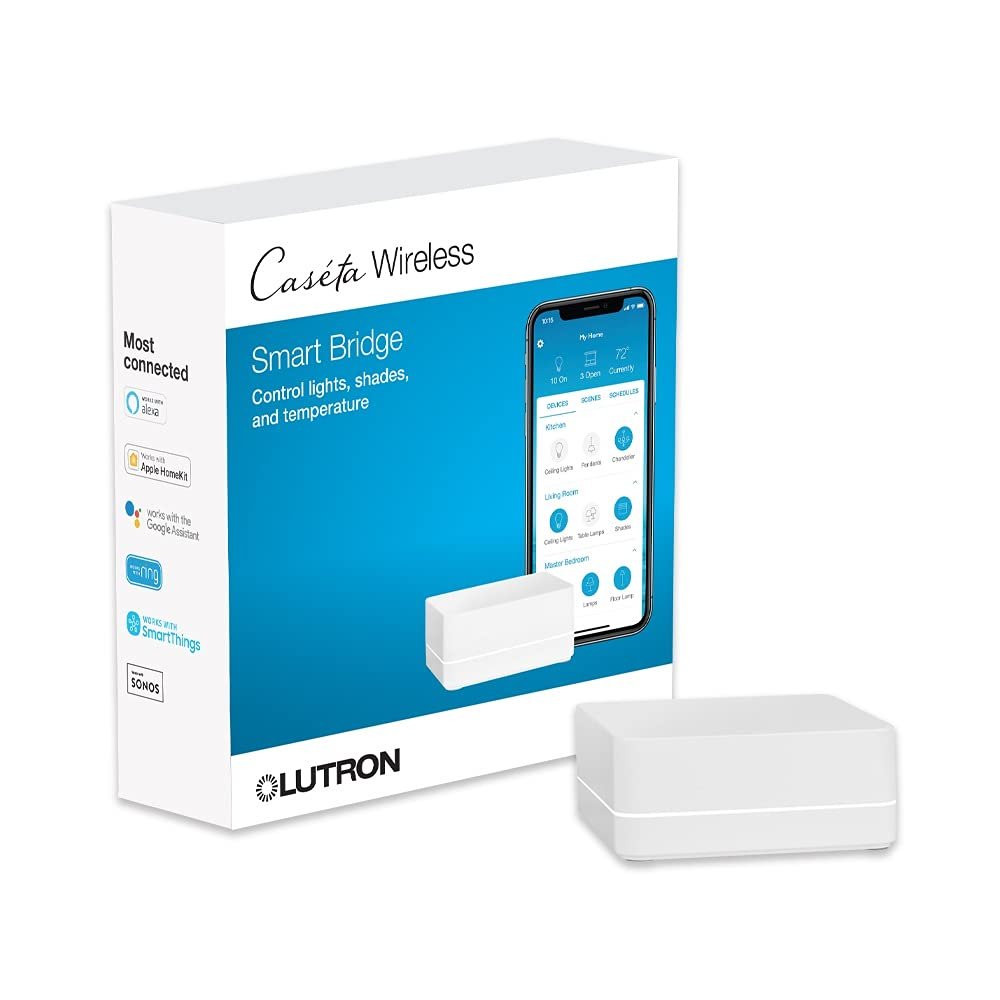
    The Lutron Caseta Smart Hub, model L-BDG2-WH, is designed to provide that central connection for compatible Caseta Wireless devices. It is sometimes referred to as the Caseta Smart Bridge, its earlier name. The hub connects to a home’s router through Ethernet and communicates wirelessly with compatible Caseta devices using Lutron’s Clear Connect technology.

    The hub is particularly relevant for people who want to connect Caseta lighting controls with platforms such as Amazon Alexa, Apple Home, and Google Home. Lutron also supports additional connected-home integrations, depending on the devices and system being used.

    An important point is that the hub is not itself a smart light switch. Instead, it acts as the central communication and management component for a Caseta system. Caseta switches and dimmers can operate directly with compatible Pico remotes without a hub, but adding the hub enables features such as app-based control, scenes, schedules, remote access, and integration with voice assistants and other smart-home platforms.

    This distinction makes the Lutron Caseta Smart Hub useful to understand before building or expanding a smart lighting setup. It is less about adding one isolated feature and more about connecting compatible lighting controls into a coordinated system.

    This guide explains what the Lutron Caseta Smart Hub does, how it communicates with connected devices, how it works with Alexa, Apple Home, and Google Home, and what users should consider before adding it to an existing or new smart-home installation.

    What Is the Lutron Caseta Smart Hub?

    The Lutron Caseta Smart Hub is the central controller for compatible Caseta Wireless devices.

    Its model number is L-BDG2-WH, and Lutron identifies it as the standard Caseta Smart Hub. It is different from the Caseta Pro Smart Hub, model L-BDGPRO2-WH, which provides additional professional-level integration capabilities.

    The standard hub communicates with Caseta devices using Lutron’s Clear Connect wireless technology rather than ordinary home Wi-Fi. The hub itself connects to the home’s router using an Ethernet cable.

    This architecture separates the communication between Caseta controls and the home’s general Wi-Fi network.

    Compatible Caseta products can include:

    • Smart dimmers
    • Smart switches
    • Fan controls
    • Pico wireless remotes
    • Sensors
    • Plug-in lamp controls
    • Compatible shades
    • Other supported Caseta accessories

    Lutron states that up to 75 Caseta devices, including the Smart Hub, can be added to the Lutron app system.

    That capacity makes the hub relevant not only to a single-room installation but also to larger residential lighting systems.

    Key Features

    Centralized Caseta Device Control

    The primary function of the Smart Hub is to bring compatible Caseta devices into one connected system.

    Without a hub, a Caseta dimmer can still communicate directly with compatible Pico remotes. The hub becomes necessary when users want capabilities such as control through the Lutron app, scenes, schedules, remote access, and integration with connected smart-home platforms.

    This creates a distinction between wireless lighting control and smart-home integration.

    A homeowner could install a Caseta dimmer and operate it from the wall or a Pico remote without creating an internet-connected smart-home system. Adding the Smart Hub expands the system by introducing software-based control and integration.

    Ethernet Connection to the Router

    One of the important characteristics of the Lutron Caseta Smart Hub is that it does not connect to the router through Wi-Fi.

    Instead, the hub connects directly to the home router using the supplied Ethernet cable. Lutron specifically states that the hub must be connected to the router through Ethernet.

    This is worth considering when choosing where to install the device.

    The hub generally needs to be positioned somewhere that provides:

    • Access to a power outlet
    • Access to the router or network equipment
    • A suitable location for wireless communication with Caseta devices

    A network switch can also be useful when the router itself has limited Ethernet ports, provided the network is configured appropriately.

    Clear Connect Wireless Communication

    Caseta devices communicate with the Smart Hub through Lutron’s Clear Connect wireless technology rather than using the home’s Wi-Fi network for device-to-device communication.

    This architecture has an important practical implication.

    Adding multiple Caseta dimmers and switches does not mean every lighting control has to compete directly for Wi-Fi bandwidth in the same way as a collection of Wi-Fi smart bulbs.

    The Caseta system has its own wireless communication method for supported controls.

    Lutron also explains that Caseta devices can continue operating locally when Wi-Fi or internet connectivity is unavailable because the Caseta devices themselves do not rely on Wi-Fi for their normal wireless communication.

    However, this should not be interpreted as meaning every remote or cloud-related function will continue without internet access. Features that depend on internet connectivity, remote access, or third-party services can have different requirements.

    Amazon Alexa Integration

    The Caseta Smart Hub can connect Caseta devices to Amazon Alexa.

    Once the appropriate integration is configured, compatible lighting controls can be operated through Alexa voice commands. Lutron provides specific instructions for connecting a Caseta system with a Smart Hub to Alexa.

    This can make ordinary lighting actions part of a voice-controlled smart-home environment.

    For example, users can create a setup in which different lights are grouped according to rooms or functions and then controlled through compatible Alexa commands.

    Voice control can be useful when:

    • Hands are occupied
    • A wall switch is inconvenient to reach
    • Multiple lights need to be controlled together
    • Users want to activate a predefined lighting scene
    • Lighting is part of a broader smart-home routine

    The actual commands and available functionality depend on the Alexa configuration and the connected Caseta devices.

    Apple Home Integration

    The Lutron Caseta Smart Hub also supports Apple Home integration.

    Lutron’s documentation identifies the L-BDG2 and L-BDGPRO2 Smart Hubs as compatible with Apple HomeKit and explains that supported Caseta devices can be controlled through Apple’s ecosystem, including Siri voice control.

    This allows compatible Caseta lighting controls to become part of an Apple Home setup.

    For an Apple-focused household, this can be useful because lighting can be managed alongside other compatible smart-home accessories within the same environment.

    Apple Home integration also makes it possible to use Siri for supported control tasks.

    As with other integrations, the hub itself is not necessarily presented as a controllable lighting device in Apple Home. Lutron notes that supported load controllers such as dimmers, switches, fan controls, smart plugs, and certain hybrid keypads appear in Apple Home, while the Smart Hub itself does not operate as a controllable load device.

    Google Home Integration

    Google Home is another supported ecosystem.

    Lutron states that Caseta can integrate with Google Home so that compatible lighting can be controlled through a smartphone or Google Assistant voice control.

    This can be especially useful in households that already organize smart-home devices through Google Home.

    For example, users can create room-based arrangements and use voice commands to control compatible Caseta lights without needing to open the Lutron app each time.

    Lutron App Control

    The Lutron app provides the main software interface for the Caseta system.

    With the Smart Hub installed, users can control compatible Caseta devices from the app and configure features such as scenes and schedules. Lutron states that the app can be used whether the smartphone is connected to the home network or when the user is away with an internet-connected device.

    This creates several different control methods:

    • Physical wall controls
    • Pico remotes
    • Lutron app
    • Amazon Alexa
    • Apple Home and Siri
    • Google Home and Google Assistant
    • Other supported integrations

    Having multiple control options can be useful because different situations call for different methods.

    Scenes

    Scenes allow multiple lighting devices to respond to one command or programmed action.

    Instead of adjusting each light individually, a scene can coordinate several compatible controls.

    For example, a homeowner might create a “Evening” scene that adjusts several rooms at once.

    Other examples could include:

    • Morning lighting
    • Dinner lighting
    • Movie lighting
    • Nighttime lighting
    • Away lighting
    • Entering-home lighting

    The exact behavior depends on the Caseta devices included in the system and how the scene is configured.

    Scheduling

    The Smart Hub also enables time-based scheduling through the Lutron system.

    Schedules can be useful for repetitive lighting routines.

    A household could configure lights to turn on at a particular time in the morning and turn off later in the day. Exterior lighting can also be coordinated around regular schedules.

    Lutron describes scheduling as one of the features unlocked by adding the Smart Hub to a Caseta system.

    Scheduling can reduce the need for repeated manual adjustments while still allowing physical controls to be used when necessary.

    Geofencing

    Another feature available through the Lutron app is geofencing.

    Lutron describes Arriving Home and Leaving Home scenes that can respond to a smartphone’s location.

    For example, an arriving-home scene could activate selected lights when the user returns to a defined area.

    A leaving-home scene could turn selected lights off.

    Location-based automation should be configured carefully because it depends on smartphone location permissions and the relevant software settings.

    Smart Away

    Lutron also describes a feature called Smart Away, which can randomly turn lights on and off during selected periods to create the appearance of normal household activity when occupants are away.

    This is different from a fixed schedule.

    A fixed schedule repeats predictable actions, while Smart Away is intended to vary lighting activity.

    The feature is primarily about automation and occupancy appearance rather than serving as a replacement for a complete security system.

    Compatibility With Sensors

    The Caseta ecosystem includes wireless sensors, allowing lighting behavior to respond to conditions such as occupancy or vacancy.

    This can help automate lighting in areas where manually operating a switch is inconvenient.

    For example, compatible sensors can be useful in:

    • Hallways
    • Utility areas
    • Bathrooms
    • Garages
    • Storage areas
    • Home offices

    Sensor-based automation can also help reduce unnecessary lighting in spaces that are frequently left unoccupied.

    Pico Remote Compatibility

    Pico remotes are an important part of the Caseta ecosystem.

    One advantage of the Caseta architecture is that Pico remotes can communicate directly with compatible Caseta devices without requiring the Smart Hub or Wi-Fi for basic operation.

    This gives users a physical control option even when the smart-home portion of the system is not being used.

    Pico remotes can also provide additional control locations without requiring traditional electrical wiring in the same way as another in-wall switch installation.

    How It Can Be Used

    Creating a Whole-Home Lighting System

    One of the most straightforward applications is coordinating lighting throughout a house.

    A system might contain Caseta dimmers in:

    • Living room
    • Kitchen
    • Bedroom
    • Hallway
    • Dining area
    • Home office
    • Exterior lighting locations

    Once connected through the Smart Hub, these devices can be organized within the Lutron app and incorporated into scenes or schedules.

    The result is not necessarily about automating every light. Instead, the hub provides a centralized framework in which users can choose which parts of the lighting system should be automated.

    Combining Wall Controls With Voice Commands

    Smart lighting does not have to replace physical switches.

    A Caseta system can combine conventional wall-based interaction with voice control.

    For example, someone can turn a light on using the wall control when entering a room, then later use Alexa, Siri, or Google Assistant to adjust another light from across the room.

    This combination is useful because smart-home technology remains accessible to people who may not want to rely entirely on smartphones or voice commands.

    Creating Movie or Entertainment Scenes

    A home entertainment area can benefit from coordinated lighting.

    A scene could reduce selected lights while leaving enough illumination in other areas for movement.

    When the activity ends, another scene can restore normal lighting.

    The same concept can be applied to dining, reading, working, or relaxing.

    Automating Morning and Evening Routines

    Schedules can make repetitive lighting actions more consistent.

    For example, morning lighting can be configured to activate at a particular time, while evening lighting can follow another schedule.

    Users can also combine scheduled events with manual control, allowing them to override the automated behavior when circumstances change.

    Connecting Caseta to a Larger Smart Home

    The Smart Hub becomes particularly useful when lighting is only one component of a larger smart-home system.

    A household might have:

    • Caseta lighting
    • Alexa speakers
    • Apple devices
    • Google Home products
    • Smart thermostats
    • Connected shades
    • Smart plugs
    • Other compatible devices

    Integrating the lighting system into a broader platform can reduce the need to manage every category separately.

    The exact level of integration depends on the third-party platform and the specific devices involved.

    Who It May Be Suitable For

    Homeowners Building Around Caseta

    The Smart Hub is particularly relevant to homeowners who already have multiple Caseta controls or plan to install several.

    If the goal is simply to control one Caseta dimmer from a Pico remote, the hub is not necessarily required. Lutron explicitly states that Caseta dimmers and switches can communicate directly with Pico remotes.

    The hub becomes more useful when centralized app control, scheduling, scenes, remote access, or third-party integration is desired.

    Alexa Users

    Households already using Amazon Alexa may find the Caseta integration useful for bringing compatible lighting controls into voice-based routines.

    Instead of treating the lighting system as a separate product category, users can incorporate it into their existing Alexa environment.

    Apple Home Users

    Apple Home users can integrate supported Caseta controls into their smart-home environment through the Lutron Smart Hub. Siri can then provide voice control for supported devices.

    Google Home Users

    Similarly, users who organize their smart-home devices through Google Home can integrate compatible Caseta controls into that environment.

    Users Who Want Physical and Digital Control

    Some smart-home systems place considerable emphasis on smartphone control.

    Caseta can provide a combination of physical switches, Pico remotes, app control, scenes, schedules, and voice assistants.

    That makes the system relevant to households where different family members prefer different control methods.

    Important Things to Consider

    The Hub Is Not Required for Basic Caseta Switching

    This is one of the most important distinctions.

    Caseta devices can operate locally with compatible Pico remotes without a Smart Hub. The hub is required for additional capabilities such as app control, scenes, schedules, and smart-home integrations.

    Therefore, whether a hub is necessary depends on how the system will be used.

    Ethernet Is Required for the Hub

    The Smart Hub itself does not connect to the home network through Wi-Fi.

    It needs a wired Ethernet connection to the router.

    This should be considered before choosing its installation location.

    If the router is located in another room, users may need to plan an Ethernet connection or network switch.

    Standard Smart Hub vs Pro Smart Hub

    The L-BDG2-WH is the standard Caseta Smart Hub.

    Lutron also sells a Caseta Pro Smart Hub, L-BDGPRO2-WH.

    Although the two products look similar, Lutron notes that certain professional-level audio/video, whole-home, and security integrations require the Pro model.

    For a normal residential Caseta system using the Lutron app and major consumer smart-home platforms, the standard hub may provide the relevant capabilities. However, anyone planning advanced third-party integration should verify compatibility with the specific integration provider before choosing between the two.

    Third-Party Integration Can Change

    Smart-home platforms evolve over time.

    Voice assistants, mobile operating systems, APIs, and manufacturer integrations can change their requirements.

    Therefore, compatibility should be checked against current documentation rather than relying exclusively on older product descriptions or forum discussions.

    Wi-Fi and Internet Are Different From Caseta Communication

    The Caseta devices communicate with the hub through Clear Connect wireless technology, not through ordinary Wi-Fi.

    The hub itself connects to the router through Ethernet.

    This means there are several separate communication layers:

    1. Caseta devices communicate wirelessly with the hub.
    2. The hub communicates with the home network through Ethernet.
    3. Internet-based services can provide remote access and third-party integration.

    Understanding those layers helps explain why local lighting operation can remain available even when internet access is interrupted, while remote control may not be available under the same circumstances.

    Wireless Range Still Matters

    Although Caseta uses its own wireless protocol, physical placement remains important.

    Large homes, thick walls, multiple floors, and certain building materials can affect wireless communication.

    Lutron provides additional range-extension options within the Caseta ecosystem, including compatible repeaters.

    For larger installations, wireless coverage should be considered during system planning rather than after all devices have been installed.

    Comparison of General Smart-Home Categories

    Dedicated Lighting Hub vs General Smart-Home Hub

    A dedicated lighting platform focuses heavily on lighting controls, switches, dimmers, shades, sensors, and related automation.

    A general-purpose smart-home hub may support a broader range of device protocols and manufacturers.

    The dedicated approach can provide a more focused environment for lighting, while a general-purpose hub may be useful for households that want to combine many different device technologies.

    The appropriate category depends on the home’s existing devices and the type of automation being planned.

    Smart Hub vs Wi-Fi Smart Switch System

    Wi-Fi smart switches communicate directly through the home’s Wi-Fi network.

    Caseta uses Clear Connect for communication between compatible Caseta controls and the Smart Hub.

    A Wi-Fi approach may be convenient for users who want individual devices to connect directly to the network.

    A centralized Caseta architecture instead separates lighting-device communication from the home’s normal Wi-Fi traffic.

    This can also provide a consistent control architecture when many Caseta devices are installed.

    Hub-Based Lighting vs Bluetooth Lighting

    Bluetooth lighting can work well for smaller installations or direct device control.

    A hub-based system is generally more suitable when users want centralized management, scheduled events, remote access, scenes, and integration with other smart-home platforms.

    Again, neither approach is universally appropriate. The choice depends on the size and complexity of the installation.

    Standard Smart Hub vs Pro Smart Hub

    The standard L-BDG2-WH and Pro L-BDGPRO2-WH both provide central control for Caseta systems.

    The major distinction is in third-party integration capabilities.

    Lutron identifies certain audio/video, whole-home, and security integrations as requiring the Pro model.

    For users who only need standard consumer integrations and Caseta control, the standard hub represents a different level of functionality from the Pro model.

    Planning a Caseta Smart Lighting System

    A good smart-lighting installation starts with planning rather than buying individual components one at a time.

    First, identify which lights should become smart.

    Then consider how each light will be controlled.

    For example:

    • Wall switch
    • Dimmer
    • Pico remote
    • Motion sensor
    • Smartphone
    • Voice assistant
    • Scheduled scene

    Next, determine which rooms should share scenes.

    A living room, kitchen, and dining area may each have separate controls but could also participate in a coordinated evening scene.

    It is also useful to think about manual control.

    Smart-home automation should not make basic lighting unnecessarily complicated. Physical controls remain valuable because anyone entering the room can use them without needing an app or voice assistant.

    The Caseta system’s combination of physical and digital control allows these methods to coexist.

    Setting Up the Smart Hub

    The basic setup process involves connecting the Smart Hub to the home’s router through Ethernet and using the Lutron app to configure the system. Lutron provides dedicated setup and troubleshooting documentation for the Smart Hub.

    A general installation process involves:

    1. Positioning the hub near the network equipment.
    2. Connecting the included power supply.
    3. Connecting the hub to the router with Ethernet.
    4. Opening the Lutron app.
    5. Activating and configuring the Smart Hub.
    6. Adding compatible Caseta devices.
    7. Creating rooms and organizing devices.
    8. Creating scenes or schedules if needed.
    9. Connecting supported third-party platforms.
    10. Testing both local and remote control.

    The exact setup screens can change as the Lutron app is updated, so current manufacturer instructions should be followed during installation.

    Using the Hub During an Internet Outage

    One of the important characteristics of the Caseta architecture is that the lighting controls do not rely on Wi-Fi or internet connectivity for their basic local wireless communication.

    Lutron explains that Caseta devices communicate through Clear Connect and can continue operating within the home even when Wi-Fi or internet service is unavailable.

    This distinction is useful.

    If the internet goes down, a homeowner may still be able to operate Caseta lighting through compatible local controls.

    However, functions that depend on external internet services may be unavailable until connectivity is restored.

    For example, remote control from outside the home generally depends on an internet connection.

    Privacy and Account Considerations

    Smart lighting can involve account-based services, smartphone applications, voice assistants, and third-party integrations.

    Users should therefore consider which services have access to their smart-home environment.

    Good practices include:

    • Using a strong account password
    • Keeping the Lutron app updated
    • Keeping compatible voice assistant accounts secure
    • Reviewing connected integrations
    • Removing integrations that are no longer needed
    • Limiting access to trusted household members

    Voice assistants can also introduce their own privacy considerations because commands are processed through the relevant platform.

    Understanding which company provides each service can help users make informed decisions about how their smart-home data is handled.

    Frequently Asked Questions

    What does the Lutron Caseta Smart Hub do?

    The Lutron Caseta Smart Hub acts as the central controller for compatible Caseta Wireless devices. It enables app-based control, scenes, schedules, remote access, and integration with platforms such as Amazon Alexa, Apple Home, and Google Home.

    Is the Lutron Caseta Smart Hub the same as the Smart Bridge?

    Yes. Lutron previously called the product the Caseta Smart Bridge. The current terminology is Caseta Smart Hub. The L-BDG2-WH is the standard Smart Hub model.

    Does Caseta work with Alexa?

    Yes. A Caseta system using the Smart Hub can integrate with Amazon Alexa for supported voice-control functions.

    Does the Caseta Smart Hub work with Apple Home?

    Yes. Lutron documents Apple HomeKit support for Caseta systems using either the L-BDG2 or L-BDGPRO2 Smart Hub.

    Does it work with Google Home?

    Yes. Lutron states that Caseta integrates with Google Home and Google Assistant for compatible control functions.

    Does the hub connect through Wi-Fi?

    No. The Smart Hub connects to the home router using Ethernet. Caseta devices communicate with the hub through Lutron’s Clear Connect wireless technology.

    Do Caseta switches need the hub to work?

    Not for basic operation with compatible Pico remotes. Caseta switches and dimmers can communicate directly with Pico remotes without a Smart Hub. The hub is needed for functions such as app control, scenes, schedules, remote access, and smart-home integration.

    How many Caseta devices can the Smart Hub support?

    Lutron states that up to 75 Caseta devices, including the Smart Hub, can be added to the Lutron app system.

    Can I control Caseta lights when I am away from home?

    The Smart Hub and Lutron app support remote control when the smartphone has an active internet connection.

    Can Caseta lights work if the internet goes down?

    Basic Caseta device communication does not depend on Wi-Fi or internet access. Lutron states that Caseta devices can continue operating locally through Clear Connect when Wi-Fi or internet service is unavailable. Internet-dependent features such as remote access can still be affected.

    What is the difference between L-BDG2-WH and L-BDGPRO2-WH?

    The L-BDG2-WH is the standard Caseta Smart Hub, while the L-BDGPRO2-WH is the Pro version. Lutron states that certain professional audio/video, whole-home, and security integrations require the Pro model.

    Can the Caseta Smart Hub control shades?

    The Caseta Smart Hub can be used with supported Lutron wireless shades and compatible Caseta products through the Lutron system.

    Can I use Pico remotes without the Smart Hub?

    Yes. Compatible Pico remotes can communicate directly with Caseta dimmers and switches without requiring a hub or Wi-Fi.

    Does the Smart Hub replace a router?

    No. The Smart Hub connects to an existing home router. It is a smart-lighting controller, not a network router.

    Is the Caseta Smart Hub suitable for a large house?

    It can be part of a larger Caseta installation, but wireless coverage and system layout should be considered. Lutron provides additional range-extension options for situations where devices are too far from the hub.

    Can I use Caseta with multiple smart-home platforms?

    Caseta supports integrations with major platforms including Amazon Alexa, Apple Home, and Google Home, along with additional connected-home solutions. The exact functionality depends on the integration and connected devices.

    Conclusion

    The Lutron Caseta Smart Hub L-BDG2-WH serves as the central connection point for a Caseta smart-lighting system. Rather than being a smart switch itself, it connects compatible Caseta controls to the Lutron app and provides access to features such as scenes, schedules, remote control, geofencing, and third-party smart-home integrations.

    Its communication architecture is also worth understanding. Caseta devices communicate with the hub using Lutron’s Clear Connect wireless technology, while the hub connects to the home’s router through Ethernet. This allows the lighting system’s basic local wireless operation to remain separate from ordinary Wi-Fi communication.

    For households using Amazon Alexa, Apple Home, or Google Home, the hub can provide a way to bring compatible Caseta lighting controls into those broader smart-home environments. Physical switches and Pico remotes can still remain part of the system, giving users several ways to control their lights.

    The hub also becomes more useful as a Caseta installation grows. Multiple switches, dimmers, sensors, remotes, and scenes can be organized within one system rather than treated as completely independent devices.

    At the same time, buyers should pay attention to the distinction between the standard L-BDG2-WH and the Caseta Pro Smart Hub. Certain professional-level integrations require the Pro model, according to Lutron’s documentation.

    Ultimately, the usefulness of a smart hub depends on the type of lighting system being built. Someone who only needs a Caseta dimmer and Pico remote may not need a hub, while a household looking for app control, schedules, scenes, remote access, and integration with a broader smart-home platform may have a different set of requirements.

    You can check more details on Amazon here.

  • Tapo CentralHub H500 for Smart Devices: Features, AI Camera Support, Storage, and Practical Uses

    Tapo CentralHub H500 for Smart Devices: Features, AI Camera Support, Storage, and Practical Uses

    Introduction

    As smart home systems become more sophisticated, the number of connected devices inside a home can grow quickly. A few security cameras can turn into a larger network that also includes motion sensors, doorbells, alarms, and other smart devices. Managing each device separately can make it harder to organize recordings, notifications, and everyday automation.

    The Tapo CentralHub H500 is designed to serve as a central point for compatible Tapo smart devices. Rather than functioning only as a conventional smart-home hub, it combines device management, local video storage, enhanced camera intelligence, connectivity options, and monitoring features in one unit.

    One of its notable functions is the ability to provide additional AI capabilities to compatible Tapo cameras. According to TP-Link, the H500 can add features such as facial recognition and enhanced person, pet, and vehicle detection to supported cameras. The company also states that the system can connect up to 16 Tapo cameras and 64 Tapo sensors, although compatibility depends on the specific devices and regional version.

    The H500 also includes 16GB of built-in eMMC storage and supports expansion with a separately purchased 2.5-inch SATA HDD or SSD with a capacity of up to 16TB. This makes the device particularly relevant for households that want to maintain local recordings rather than depending entirely on individual camera storage or cloud-based recording services.

    Understanding what a central home hub actually does is important before adding one to a smart-home system. The H500 is not simply a storage box or Wi-Fi accessory. It is intended to coordinate compatible cameras and sensors, provide a centralized interface, process certain AI-related functions, and offer additional ways to view and manage security events.

    This guide explores the Tapo H500 from an informational perspective, including its major features, how it can be used, storage considerations, camera AI functions, connectivity, compatibility, and the situations in which a centralized smart-home system may make practical sense.

    What Is the Tapo H500?

    The Tapo H500 is a Smart HomeBase and CentralHub designed for the Tapo ecosystem. Its role is to provide a central location for compatible cameras and sensors rather than requiring every device to operate as an isolated component.

    TP-Link describes the H500 as capable of connecting up to 16 Tapo cameras and 64 Tapo sensors. It supports wireless connections for cameras and devices while also offering Ethernet connectivity to the router. Depending on the regional version, the system uses different wireless frequencies for communication with cameras, sensors, and the router.

    The H500 can therefore be thought of as a bridge between several parts of a smart-home system:

    • Security cameras
    • Smart sensors
    • Local video storage
    • AI-powered camera features
    • Home automation
    • Mobile monitoring
    • HDMI-based viewing
    • Compatible Matter devices
    • Certain third-party IP cameras through ONVIF support

    This centralized approach can be useful when a home has multiple cameras and sensors because it creates a single location for managing a larger portion of the system.

    Key Features

    Centralized Smart-Home Management

    One of the primary purposes of the H500 is to centralize compatible Tapo devices.

    TP-Link states that the H500 can connect up to 16 Tapo cameras and 64 Tapo sensors. This provides considerably more capacity than a hub intended only for a few sensors or a smaller camera setup.

    For example, a home might have:

    • One camera covering the front entrance
    • Another camera overlooking a driveway
    • A camera monitoring a backyard
    • A doorbell camera
    • Motion sensors
    • Door and window sensors
    • Other compatible smart-home accessories

    Instead of treating every device as an independent system, the H500 can act as the central point connecting these components.

    Actual compatibility should still be checked before purchasing additional devices because support can vary according to hardware version, firmware, device model, and region. TP-Link maintains compatibility information and firmware documentation for the H500.

    Enhanced AI Features for Compatible Cameras

    One of the more interesting aspects of the H500 is its ability to extend AI-related functionality to supported Tapo cameras.

    TP-Link describes features including facial recognition and detection of people, pets, and vehicles. The company explains that facial recognition can help identify familiar and unfamiliar faces and organize relevant events.

    This can change the way security notifications are interpreted.

    A conventional motion alert might simply indicate that movement occurred. An AI-assisted system can potentially provide more context, such as whether the detected subject was a person, pet, vehicle, or recognized face.

    That distinction can be useful because not every movement around a property represents the same level of importance.

    For example, a camera facing a driveway may detect:

    • A family member arriving
    • A delivery vehicle
    • A neighbor walking past
    • A pet moving through the area
    • An unfamiliar person

    Having more detailed classification can help organize events and reduce the number of alerts that require immediate attention.

    However, AI detection should not be interpreted as infallible. Lighting, camera angle, distance, obstructions, image quality, movement, and environmental conditions can affect detection and recognition performance.

    Facial Recognition

    Facial recognition is one of the features highlighted by TP-Link for the H500.

    The general concept is straightforward: compatible camera footage can be analyzed to help distinguish recognized faces from unfamiliar ones. This can make event searching and notification management more organized.

    For a household with recurring visitors, family members, or employees, face-based categorization may provide additional context compared with basic motion detection.

    At the same time, facial recognition involves sensitive personal information. Users should consider who has access to the Tapo account, how recognition data is managed, and the privacy expectations of people whose faces may be captured by cameras.

    The feature should therefore be treated as a convenience and organizational tool rather than as a perfect identification system.

    Local Storage

    The H500 includes 16GB of built-in eMMC storage and provides an expansion slot for a 2.5-inch SATA HDD or SSD with support for storage capacities up to 16TB. The additional drive must be purchased separately.

    Local storage can be useful for several reasons.

    First, it provides a centralized location for compatible camera recordings. Instead of relying exclusively on individual memory cards inside cameras, recordings can be managed through the HomeBase.

    Second, larger storage capacity can be useful when several cameras are recording regularly. Video files accumulate quickly, particularly when multiple cameras operate continuously or generate frequent motion events.

    Third, local storage can help reduce dependence on subscription-based cloud recording plans. TP-Link specifically markets the H500 around local storage without monthly storage fees, although individual camera features and services can have their own requirements.

    It is important to distinguish local storage from a complete replacement for every cloud service. Compatibility and feature availability can vary between devices and services, so users should check the requirements for their particular cameras.

    Expandable Up to 16TB

    The H500’s storage architecture is particularly relevant for larger camera systems.

    The built-in 16GB eMMC storage provides the starting point, while a separately purchased 2.5-inch SATA HDD or SSD can expand the available capacity to as much as 16TB.

    A larger drive can be useful for households that want to retain security footage for longer periods.

    For example, a small installation with occasional motion events may not generate recordings as quickly as a multi-camera system covering entrances, outdoor areas, and common spaces.

    Storage requirements depend on several factors:

    • Number of cameras
    • Resolution
    • Recording mode
    • Frame rate
    • Amount of motion activity
    • Compression settings
    • Retention period
    • Number of events generated

    Therefore, a 16TB drive does not automatically mean a specific number of days of recording. Actual retention varies according to how the system is configured.

    HDMI Video Output

    The H500 includes an HDMI port that allows compatible video feeds to be displayed on a larger screen. TP-Link describes the feature as supporting viewing on a monitor or television and states that up to four live views can be displayed on larger screens.

    This can be practical in situations where a dedicated monitoring screen is preferred over constantly checking a phone.

    For example, a homeowner could use a monitor in a home office to view multiple camera feeds, while still using the Tapo application for remote access and configuration.

    A larger screen can also make multi-camera monitoring easier because several feeds can be visible at once.

    110dB Built-In Alarm

    The H500 includes a built-in alarm rated at 110dB. TP-Link also describes the device as being able to function as a chime when connected with compatible Tapo doorbells.

    An integrated alarm provides another way for the hub to participate in security notifications.

    For example, a compatible automation could use an event detected by a camera or sensor to trigger an audible notification.

    The appropriate use of the alarm depends on the household and the configuration of connected devices. Users should avoid assuming that every camera or sensor event will automatically activate the alarm, because behavior depends on compatibility and automation settings.

    Wi-Fi and Ethernet Connectivity

    The H500 supports multiple connection methods.

    TP-Link specifies 5GHz Wi-Fi for communication with the router and 2.4GHz Wi-Fi for cameras in its US specifications, while also providing Ethernet connectivity. Regional versions can use different sub-1GHz frequencies for supported devices.

    This gives users flexibility when planning the physical installation.

    A wired Ethernet connection can be useful when the H500 is positioned close to a router and a stable wired connection is preferred. Wi-Fi can be more convenient when running an Ethernet cable is impractical.

    For video-heavy applications, connection quality matters. The hub’s position, router performance, wireless congestion, walls, distance, and network configuration can all affect communication between devices.

    Matter Compatibility

    The H500 supports Matter, a smart-home interoperability standard designed to make compatible smart devices easier to integrate across supported ecosystems.

    Matter can be useful when a household uses smart products from multiple manufacturers. Instead of relying exclusively on one company’s proprietary ecosystem, Matter-compatible devices can potentially participate in a broader smart-home environment.

    Compatibility is still device-specific, however. A product being Matter-compatible does not necessarily mean every feature of that product will become available through every Matter ecosystem.

    ONVIF Support

    TP-Link’s product documentation also identifies ONVIF support as part of the H500’s compatibility approach. ONVIF can be particularly relevant to users who operate IP cameras from multiple manufacturers.

    This can provide additional flexibility compared with a hub designed exclusively around a single camera brand.

    However, ONVIF interoperability does not guarantee that every advanced camera feature will work across brands. Basic video streaming and more advanced functions can have different compatibility requirements.

    How the Tapo H500 Can Be Used

    Managing a Multi-Camera Home

    One straightforward use case is a home with several security cameras.

    Instead of checking individual camera applications, a centralized system can provide a unified environment for viewing and managing connected cameras.

    A possible arrangement could include cameras covering:

    • Front door
    • Garage
    • Driveway
    • Backyard
    • Side entrance
    • Indoor common areas

    The H500 can serve as the central HomeBase for supported Tapo cameras, with the system designed to accommodate up to 16 cameras.

    Organizing Security Events

    When multiple cameras generate alerts throughout the day, searching through individual notifications can become inconvenient.

    The H500’s centralized approach is designed to make event management easier. TP-Link describes features such as daily security reports, event tags, and tools for finding relevant events within the Tapo application.

    AI classifications can add another layer of organization.

    Instead of treating every motion event identically, users can potentially distinguish events involving people, pets, vehicles, or recognized faces.

    Monitoring a Property on a Larger Screen

    The HDMI output can be useful for users who prefer a dedicated display.

    A television or monitor can provide a larger overview of multiple cameras, particularly when the goal is to keep an eye on several areas at once.

    This can be useful in:

    • Home offices
    • Workshops
    • Small businesses
    • Reception areas
    • Security monitoring stations
    • Homes with multiple exterior cameras

    Building a Sensor-Based Security System

    The H500 is not limited to cameras.

    TP-Link states that it can connect up to 64 Tapo sensors, allowing cameras and sensors to form part of a broader smart-home ecosystem.

    Sensors can provide information that cameras alone cannot.

    For example, a door sensor can identify whether a door was opened, while a motion sensor can detect movement in a particular area. Cameras can then provide visual context.

    Combining these types of devices can create a more structured security system.

    Who It May Be Suitable For

    Households With Multiple Tapo Cameras

    The H500 becomes more relevant as the number of compatible cameras increases.

    Someone using only one basic camera may not need a dedicated central hub. A household with several cameras, however, may benefit from having centralized storage, event organization, and device management.

    Users Interested in Local Video Storage

    The H500 may also appeal to users who prefer maintaining security footage locally.

    Its 16GB internal storage and support for an additional SATA HDD or SSD provide a way to create a larger local video storage system.

    Users should still review individual camera and service requirements before assuming that every recording feature works entirely locally.

    Smart-Home Enthusiasts

    People who are gradually building a larger smart home may find a centralized hub easier to manage than a collection of disconnected devices.

    The combination of Tapo devices, Matter compatibility, sensors, cameras, and supported IP cameras gives the H500 a broader role than a simple camera recorder.

    Small Shops and Workspaces

    A small business or workshop may use multiple cameras and sensors to monitor entrances, storage areas, equipment, or customer-facing spaces.

    The H500 can provide a centralized monitoring environment, although businesses should also consider privacy requirements, local surveillance laws, employee policies, and appropriate data retention practices.

    Important Things to Consider

    Compatibility Should Be Checked Before Installation

    Not every Tapo device necessarily provides the same functionality when connected to the H500.

    TP-Link maintains compatibility information and regularly releases firmware updates, so checking the current compatibility list is important before purchasing additional equipment.

    Hardware versions can also vary by region.

    AI Detection Is Not Perfect

    AI-powered recognition can make security systems more informative, but it should not be treated as a guarantee.

    Factors such as:

    • Low light
    • Strong backlighting
    • Distance
    • Obstructions
    • Camera angle
    • Fast movement
    • Similar-looking faces
    • Weather
    • Image quality

    can influence detection results.

    For security-critical situations, AI notifications should be considered one layer of information rather than the sole source of decision-making.

    Facial Recognition Requires Privacy Awareness

    Facial recognition introduces additional privacy considerations.

    Before enabling the feature, households should consider whether everyone who may be recorded understands how the system is being used.

    For businesses and rental properties, additional privacy or surveillance obligations may apply depending on the location and circumstances.

    Storage Capacity Is Not the Same as Retention Time

    A large storage drive does not automatically translate into a fixed number of days of recordings.

    Retention depends on the number of cameras, recording settings, resolution, motion activity, and other factors.

    Users should therefore select storage capacity based on their actual recording strategy.

    Network Quality Matters

    Although the H500 supports both wired and wireless networking, the quality of the underlying network remains important.

    A hub positioned far from the router may experience connectivity challenges if wireless conditions are poor. Multiple cameras also generate more traffic than a single camera.

    For installations with several cameras, planning the router location, Ethernet availability, Wi-Fi coverage, and camera placement can make a meaningful difference.

    Regional Versions Matter

    TP-Link notes that hardware availability and specifications can vary by region. The H500’s sub-1GHz frequencies, for example, differ between regions such as the US/Australia and Europe/UK.

    This is particularly important when purchasing a device from an international marketplace.

    The version intended for the user’s region should be verified before installation.

    Comparison of General Smart-Home Categories

    Central Smart HomeBase vs Individual Camera Storage

    A camera with its own memory card can be sufficient for a small installation.

    However, individual storage becomes more complicated when several cameras are involved. Each camera may have its own storage configuration and event management.

    A centralized HomeBase moves more of that management into one location.

    The trade-off is that the hub becomes an important component of the overall system.

    Local Storage Hub vs Cloud-Centered Security System

    A cloud-centered system generally sends recordings to remote servers, while a local-storage hub can keep compatible recordings within the home.

    Local storage can offer greater control over where recordings are retained and can reduce dependence on recurring cloud storage plans.

    Cloud services, on the other hand, can provide advantages for remote access, off-site redundancy, and simplified hardware management.

    Neither approach automatically eliminates every security or privacy consideration.

    The H500’s design gives users a local-storage option while still supporting connected smart-home functionality.

    Multi-Protocol Hub vs Single-Ecosystem Hub

    A single-ecosystem hub can provide a relatively straightforward experience when all devices come from the same product family.

    A broader hub that supports technologies such as Matter and ONVIF can offer more flexibility when users want to combine devices.

    The additional flexibility can also introduce compatibility questions. A device may technically connect while not supporting every manufacturer-specific function.

    Setting Up a Tapo H500 System

    A typical installation begins with positioning the H500 in a suitable location near the home’s networking equipment and power source.

    Users can then connect the hub to the network through a compatible connection method and add supported Tapo devices through the Tapo application.

    For a larger installation, it is useful to plan the system before adding every device.

    Consider:

    1. Where each camera will be installed.
    2. Which areas require continuous monitoring.
    3. Where sensors should be positioned.
    4. Whether Ethernet or Wi-Fi is preferable for the HomeBase.
    5. How much video storage is required.
    6. Whether a SATA HDD or SSD should be added.
    7. Which users should have account access.
    8. Which AI recognition features are appropriate.
    9. Whether HDMI monitoring is useful.
    10. Which automation rules should generate alerts.

    Firmware should also be kept current. TP-Link continues to publish H500 firmware updates, including updates that address compatibility, stability, and specific feature behavior.

    Practical Storage Planning

    Storage planning is one of the most important considerations for a multi-camera system.

    Suppose a household has four cameras. Each camera may produce a different amount of footage depending on its location.

    A camera pointed at a quiet entrance may generate relatively few motion events. A camera facing a busy street could generate considerably more activity.

    Similarly, continuous recording creates a different storage requirement from motion-based recording.

    When planning storage, consider:

    • Number of cameras
    • Recording mode
    • Resolution
    • Activity level
    • Desired retention period
    • Whether important clips are exported elsewhere

    The H500’s support for up to 16TB of additional SATA storage gives larger installations substantial room for expansion, but the appropriate capacity depends on the actual configuration.

    Security and Data Protection

    A smart-home hub can become an important part of the home’s digital infrastructure, particularly when it stores camera footage.

    TP-Link specifies 128-bit AES encryption with SSL/TLS for the H500. The company also highlights multilayer encryption and account security features on its product documentation.

    Users should complement these technical protections with good account practices.

    Useful measures include:

    • Using a strong, unique account password
    • Enabling available account security features
    • Keeping firmware updated
    • Limiting account access to trusted users
    • Avoiding unnecessary sharing of camera credentials
    • Reviewing connected devices periodically
    • Placing the HomeBase in a secure physical location

    A secure smart-home system involves both the hardware and the way the system is configured and maintained.

    Frequently Asked Questions

    What is the Tapo H500 used for?

    The Tapo H500 is a Smart HomeBase designed to centralize compatible Tapo cameras, sensors, storage, and smart-home functions. TP-Link states that it can connect up to 16 cameras and 64 sensors.

    Does the Tapo H500 improve camera AI?

    For compatible Tapo cameras, the H500 can provide enhanced AI functions such as facial recognition and person, pet, and vehicle detection. The exact functions available depend on camera compatibility and software support.

    How much storage does the Tapo H500 have?

    The H500 includes 16GB of built-in eMMC storage. It also supports a separately purchased 2.5-inch SATA HDD or SSD with capacity up to 16TB.

    Does the H500 require a hard drive?

    No. The unit includes 16GB of built-in storage. A separate HDD or SSD is an optional expansion for users who need more local storage capacity.

    Can the Tapo H500 connect multiple cameras?

    Yes. TP-Link specifies support for up to 16 Tapo cameras. The exact compatibility of individual camera models should be verified before installation.

    Can it connect smart sensors?

    Yes. TP-Link specifies support for up to 64 Tapo sensors.

    Does the Tapo H500 support Matter?

    Yes. The H500 is marketed as Matter-compatible and is designed to work with compatible Matter-certified smart-home products.

    Can the H500 connect to a TV or monitor?

    The H500 includes HDMI output, allowing compatible camera views to be displayed on a larger screen. TP-Link states that up to four live views can be displayed on larger screens.

    Does the H500 work with Wi-Fi?

    Yes. The H500 supports Wi-Fi connections as well as Ethernet networking. TP-Link’s US specifications list 5GHz Wi-Fi for the router connection and 2.4GHz Wi-Fi for cameras.

    Does it replace a router?

    No. The H500 is a smart-home central hub, not a conventional home router. It connects to the home’s existing network and provides centralized management for compatible smart devices.

    Can the H500 replace cloud storage?

    It can provide local storage for compatible camera systems, which can reduce the need for some cloud storage services. However, users should check the specific requirements of their cameras and desired features rather than assuming that every cloud-dependent function is replaced.

    Is facial recognition guaranteed to identify everyone correctly?

    No. Facial recognition systems can make mistakes, and performance can vary according to image quality, lighting, viewing angle, distance, and other conditions. It should be treated as an assistance feature rather than a guaranteed identification method.

    Does the H500 work with cameras from other brands?

    TP-Link’s product materials identify ONVIF support, which can allow certain IP cameras from other manufacturers to be integrated. However, compatibility and available features can vary between camera models and protocols.

    Does the H500 have a built-in alarm?

    Yes. TP-Link specifies a built-in 110dB alarm and describes additional doorbell chime functionality.

    Can the H500 be used without Ethernet?

    The H500 supports Wi-Fi connectivity, giving users an alternative to a wired network connection. For installations involving several cameras, users should consider network conditions and choose the connection method that provides appropriate stability.

    Conclusion

    The Tapo CentralHub H500 is designed for users who want to move beyond a collection of individually managed smart cameras and sensors toward a more centralized home-security and automation system.

    Its role combines several functions: local video storage, camera management, enhanced AI capabilities, sensor connectivity, smart-home integration, HDMI monitoring, and alarm functionality. TP-Link specifies support for up to 16 cameras and 64 sensors, while local storage can be expanded from the built-in 16GB eMMC to a separately purchased SATA HDD or SSD of up to 16TB.

    The AI capabilities are particularly relevant for households that want more context from security notifications. Facial recognition and person, pet, and vehicle detection can help organize events more intelligently than basic motion alerts, although AI recognition should always be viewed as an assistive technology rather than a perfect identification system.

    The H500 can also make sense for users interested in local video storage, larger multi-camera installations, Matter-compatible smart-home devices, or viewing several camera feeds on a dedicated monitor.

    As with any smart-home platform, compatibility should be checked carefully before expanding the system. Regional hardware versions, firmware, camera models, storage requirements, network conditions, and privacy considerations can all influence how the system works in a particular installation.

    For someone planning a Tapo-centered smart home with multiple cameras and sensors, understanding these factors can help determine whether a centralized HomeBase fits the intended setup.

    You can check more details on Amazon here.

  • Hubitat Elevation C-8 Pro Smart Home Hub: A Practical Guide to Z-Wave, Zigbee, Matter, and Local Home Automation

    Hubitat Elevation C-8 Pro Smart Home Hub: A Practical Guide to Z-Wave, Zigbee, Matter, and Local Home Automation

    Smart home devices have become increasingly diverse. A modern home may contain smart lights from one manufacturer, motion sensors from another, smart locks using Z-Wave, plugs using Zigbee, thermostats connected over a local network, and newer products based on Matter. Managing these devices can become complicated when every manufacturer expects users to rely on a separate application or cloud service.

    A dedicated smart home hub can provide another approach.

    The Hubitat Elevation C-8 Pro Smart Home Hub is designed as a central platform for connecting and automating compatible smart home devices. Rather than focusing on one manufacturer’s ecosystem, the C-8 Pro supports multiple communication technologies, including Z-Wave, Zigbee, Matter, Wi-Fi, Ethernet, Bluetooth, and LAN-connected devices, depending on the specific integration. Hubitat currently states that the C-8 Pro works with more than 1,000 compatible devices across more than 100 brands.

    One of the defining characteristics of the platform is local automation processing. Hubitat states that automations can run on the hub rather than depending entirely on cloud processing. This approach can be useful for households that want automation routines to continue operating locally even when the internet connection is unavailable.

    The C-8 Pro also provides more processing resources than the standard C-8. Hubitat identifies a 2.0 GHz processor and 2GB of RAM for the C-8 Pro, compared with 1.4 GHz and 1GB on the standard C-8.

    This additional processing capacity becomes more relevant as a smart home grows more sophisticated. A few automated lights require relatively little coordination, while a larger installation can involve dozens of sensors, switches, locks, thermostats, scenes, schedules, and conditional rules.

    This guide explains what the Hubitat Elevation C-8 Pro does, how its different smart home protocols fit together, how local automation works, what types of households may find it useful, and what should be considered before building a smart home around a multi-protocol hub.

    What Is the Hubitat Elevation C-8 Pro?

    The Hubitat Elevation C-8 Pro is a dedicated home automation controller.

    Instead of asking each smart device to operate independently through its own application, the hub provides a central environment where compatible devices can be connected, organized, and used together in automations.

    For example, a motion sensor could trigger a light, a door sensor could influence a security routine, or a temperature sensor could contribute to a thermostat automation.

    The important distinction is that the hub does not replace the individual smart devices.

    A smart switch remains a switch. A motion sensor remains a sensor. A smart lock remains a lock.

    The hub provides the logic that allows those devices to work together.

    Hubitat’s platform includes built-in automation tools such as Basic Rules, Rule Machine, Room Lighting, Thermostat Scheduler, Mode Manager, Groups, and Scenes.

    This makes the C-8 Pro particularly relevant to users who want to create rules based on combinations of events rather than simply controlling devices manually.

    Key Features of the Hubitat Elevation C-8 Pro

    Local Automation Processing

    Local processing is one of the central concepts behind Hubitat Elevation.

    With a cloud-dependent system, a command may need to travel from the home to an external server and then return to the home before the device responds.

    Hubitat’s architecture is designed to process compatible automations locally on the hub. The company states that device data and automation processing remain local, allowing compatible automations to continue operating even when the internet connection is unavailable.

    This can be useful for several reasons.

    First, local processing can reduce dependence on an external service for routine automation.

    Second, it can reduce the number of situations in which an internet outage affects basic home automation.

    Third, keeping device data locally can be relevant to people who place a high value on data privacy.

    Local processing does not mean that every smart home function is automatically independent of the internet. Cloud-connected integrations and remote services can still depend on external connectivity.

    That distinction is important when planning a system.

    2.0 GHz Processor

    The C-8 Pro uses a faster processor than the standard C-8.

    Hubitat lists the C-8 Pro with a 2.0 GHz processor and 2GB of RAM.

    The extra processing resources can become useful as the number and complexity of automations increase.

    A simple rule such as “turn on a light when motion is detected” requires little computational complexity.

    A more elaborate system could involve multiple sensors, time restrictions, modes, device states, conditions, notifications, and chained actions.

    The C-8 Pro’s hardware is designed to provide additional capacity for this type of environment.

    2GB of RAM

    The C-8 Pro includes 2GB of RAM, which Hubitat identifies as twice the memory of the standard C-8.

    For an individual homeowner, RAM specifications are not necessarily meaningful by themselves.

    Their practical relevance becomes clearer when considering the hub as the central controller for a larger automation installation.

    More memory can provide additional headroom for applications, drivers, integrations, and automation logic.

    It should not, however, be interpreted as a guarantee that every possible third-party integration will operate identically.

    Compatibility remains dependent on the device, driver, integration method, and software version.

    Built-In Zigbee 3.0

    Zigbee is one of the wireless protocols supported by the C-8 Pro.

    The hub includes a Zigbee 3.0 radio in the standard C-8 Pro configuration.

    Zigbee is commonly used for smart lighting, sensors, switches, buttons, plugs, and other relatively low-power devices.

    One of the useful characteristics of Zigbee is its mesh-network architecture.

    Depending on the device and implementation, powered Zigbee devices can help extend the network by relaying signals.

    This means the quality of a Zigbee installation is not determined solely by the distance between the hub and the furthest sensor.

    Device placement matters.

    A home with several strategically placed powered Zigbee devices may have a different communication environment from a home where the hub is isolated from every other device.

    Zigbee and Battery-Powered Sensors

    Zigbee is particularly common among battery-powered sensors.

    Door sensors, motion sensors, temperature sensors, and similar devices can use low-power wireless communication while remaining relatively small.

    Battery-powered devices generally have different networking behavior from mains-powered devices, so users should consider the complete mesh rather than expecting every device to act as a repeater.

    Built-In Z-Wave 800 Series

    The C-8 Pro also includes an 800-series Z-Wave radio and support for Z-Wave Long Range.

    Z-Wave is another wireless smart home protocol, but it operates in a different radio range from Wi-Fi, Zigbee, and Bluetooth.

    Hubitat’s documentation describes Z-Wave as a sub-GHz wireless technology designed for residential and light-commercial IoT applications. The platform supports Z-Wave S2 security, including 128-bit AES secure encryption for security-enabled Z-Wave devices.

    Z-Wave’s sub-GHz operation can be useful because it does not share the same 2.4 GHz spectrum used by Wi-Fi, Zigbee, Bluetooth, and many other household wireless devices.

    Z-Wave Mesh Networking

    Traditional Z-Wave networks can use mains-powered devices as repeaters.

    For example, a powered smart switch can help extend communication to another device farther away.

    Battery-powered Z-Wave devices generally function as end devices rather than repeaters, helping preserve battery life. Hubitat’s documentation explains this distinction in its Z-Wave documentation.

    As with Zigbee, network planning remains important.

    Adding devices does not automatically guarantee perfect communication. Building materials, placement, radio interference, device orientation, and the physical structure of the home can all affect wireless performance.

    Z-Wave Long Range

    The C-8 Pro supports Z-Wave Long Range, often abbreviated as Z-Wave LR.

    Z-Wave LR is intended to extend wireless communication beyond the traditional range of standard Z-Wave networking.

    This can be relevant to larger homes, detached areas, or installations where some devices are located farther from the main hub.

    Actual range is still influenced by the environment and the specific device.

    Marketing specifications should not be interpreted as a guarantee that every Z-Wave LR device will communicate successfully across a particular property.

    Matter Support

    Matter has become an important part of the smart home ecosystem because it is designed as a cross-platform smart home standard.

    Hubitat added Matter support to its platform in 2024 and continues to support Matter on current hardware. The company’s current C-8 Pro product information identifies Matter controller support, while current product pages state support for Matter 1.5.

    Matter is intended to make smart home devices more interoperable across participating ecosystems.

    That does not mean that every Matter device automatically exposes every possible feature through every controller.

    Device capabilities, Matter device type, software versions, and the particular integration all matter.

    For a user building a new smart home, however, Matter support provides another protocol option alongside established technologies such as Zigbee and Z-Wave.

    Wi-Fi and Ethernet Connectivity

    The C-8 Pro includes built-in Wi-Fi and Ethernet connectivity.

    Ethernet can be useful when the hub is installed in a central networking location or near a router.

    A wired connection can also simplify network planning because the hub does not need to rely on Wi-Fi for its connection to the local network.

    Wi-Fi provides another connectivity option when running an Ethernet cable is inconvenient.

    The best choice depends on the physical layout of the home and the network infrastructure.

    External Antennas

    The C-8 Pro uses external antennas for its Zigbee and Z-Wave radios.

    Hubitat states that the external antennas are designed to improve wireless range and communication reliability.

    Antenna placement can matter in real-world installations.

    The hub should not be buried behind dense objects or placed inside a metal enclosure unless the manufacturer specifically supports that arrangement.

    For a multi-protocol hub, physical placement can influence the quality of multiple wireless networks simultaneously.

    How the Hub Can Be Used

    Automated Lighting

    Lighting is one of the simplest ways to understand home automation.

    A motion sensor can trigger a hallway light.

    A door sensor can activate an entry light.

    A schedule can turn outdoor lighting on at a particular time.

    A combination of time and motion can provide more sophisticated behavior.

    For example, a light could respond differently depending on whether it is daytime, evening, or late at night.

    Hubitat’s built-in Room Lighting application is designed for lighting automation, while Rule Machine provides more detailed conditional logic.

    Motion-Based Automation

    Motion sensors can be combined with other conditions to avoid unnecessary actions.

    A simple automation could turn on a light when motion is detected.

    A more advanced rule might consider the time of day, the current mode, whether the light is already on, and whether someone is present.

    This is where a central automation platform becomes more useful than isolated device apps.

    Door and Window Sensors

    Door and window sensors can act as triggers for many types of routines.

    A door opening could:

    • Turn on an entry light
    • Change a home mode
    • Send a notification
    • Trigger another compatible device
    • Record an automation event

    The exact behavior depends on the sensors, devices, and rules configured by the homeowner.

    Thermostat Automation

    Hubitat includes a Thermostat Scheduler application for creating schedules around compatible thermostats.

    A thermostat automation can be more flexible than a simple fixed schedule when combined with other conditions.

    For example, a homeowner might create different behavior for weekdays and weekends or use different settings according to home modes.

    The actual capabilities depend on the thermostat and its integration.

    Security-Oriented Automation

    The C-8 Pro can also be used as part of a broader home-security automation setup.

    Sensors can monitor doors, windows, motion, water, or other conditions.

    Hubitat’s platform has historically included Hubitat Safety Monitor for safety and security-oriented automations.

    However, a smart home hub should not automatically be treated as a professionally monitored security system.

    Automation can provide notifications and device responses, but professional security monitoring, emergency services, and certified alarm systems involve different requirements.

    Creating Scenes and Modes

    A scene is a useful concept for organizing several devices into one predefined state.

    For example, a “Movie” scene might adjust compatible lights and other devices.

    A “Good Night” scene could turn off selected lights and activate appropriate security-related devices.

    Modes add another layer of logic.

    The home might operate differently during:

    • Morning
    • Day
    • Evening
    • Night
    • Away
    • Vacation

    Hubitat includes Mode Manager for configuring mode changes based on schedules or other conditions.

    This can make automations more context-aware.

    Voice Assistant Integration

    Hubitat can integrate with popular voice assistants including Amazon Alexa and Google Home, and the company also documents integration options involving other smart home ecosystems.

    Voice control can provide a convenient user interface while Hubitat handles the underlying automation logic.

    For example, a voice assistant might be used to control a compatible light, while Hubitat simultaneously coordinates sensors and other devices.

    Voice integration does not necessarily mean that every function is processed locally. Some voice assistant services rely on their own cloud infrastructure.

    This is an important distinction for users who prioritize local operation.

    Customization With Apps and Drivers

    One of Hubitat’s more technical characteristics is its extensibility.

    The platform supports custom applications and device drivers, including development using the Groovy programming language.

    This creates opportunities for advanced users to build integrations beyond the most basic built-in options.

    It also means the platform can be more technically demanding than a smart home system designed around a very simplified setup process.

    Users who enjoy customization may appreciate this flexibility.

    Users who prefer a completely automatic setup experience may need more time to learn the platform.

    Who May Find the C-8 Pro Suitable?

    Smart Home Enthusiasts

    People who already own devices from multiple manufacturers may appreciate having a central platform capable of communicating through several protocols.

    Users With Large Smart Home Installations

    A larger number of devices can create more complicated automation requirements.

    The C-8 Pro’s additional processing resources can be useful when managing a more sophisticated collection of devices and rules.

    Privacy-Conscious Homeowners

    People who prefer local processing may find Hubitat’s architecture relevant because the company emphasizes local automation and local device data storage.

    DIY Automation Users

    The platform provides built-in rule tools as well as options for custom apps and drivers.

    This makes it suitable for users who want to build their own automation logic rather than relying entirely on manufacturer-defined routines.

    Mixed-Protocol Households

    A household containing Z-Wave, Zigbee, Matter, LAN, and other compatible devices may benefit from a hub designed around multiple communication methods.

    Important Things to Consider

    Compatibility Is Device-Specific

    “Supports Zigbee,” “supports Z-Wave,” or “supports Matter” does not mean every device using that protocol will automatically have identical functionality.

    The exact device should be checked against Hubitat’s compatibility resources.

    Hubitat states that its platform supports more than 1,000 devices across more than 100 brands, but compatibility remains dependent on individual devices and integrations.

    Regional Z-Wave Frequencies Matter

    Z-Wave uses different frequency allocations in different regions.

    The C-8 Pro’s radio is region-specific. Hubitat’s product documentation, for example, identifies a US-frequency Z-Wave radio for the North American version.

    This is particularly important for buyers outside North America.

    A hub intended for one region should not automatically be assumed to have the correct Z-Wave frequency for another region.

    The correct regional version should be verified before purchase.

    Matter Does Not Mean Universal Compatibility

    Matter improves interoperability, but it does not eliminate all compatibility considerations.

    Different Matter device types can expose different functions.

    Firmware versions and controller capabilities can also change over time.

    A Matter label is therefore not enough to guarantee that a particular device will provide every feature the user expects through Hubitat.

    Internet Independence Has Limits

    Local automations can continue functioning without internet access, but cloud integrations may not.

    For example, a locally connected motion sensor and smart switch may continue to interact through the hub, while an external cloud service may become unavailable during an internet outage.

    The difference between local and cloud-based devices should be considered when designing critical routines.

    Smart Home Complexity

    The flexibility of Hubitat can also introduce complexity.

    A system with dozens of devices and many rules requires organization.

    Device names, rooms, modes, automations, dashboards, and integrations should be structured carefully.

    Otherwise, troubleshooting can become difficult.

    A useful approach is to start with a few essential automations and gradually expand the system.

    Hubitat C-8 Pro vs. Standard C-8

    The C-8 Pro and C-8 share many core capabilities.

    Both support Zigbee 3.0, Z-Wave 800-series technology, Z-Wave Long Range, Matter controller functionality, Wi-Fi, Ethernet, and external antennas.

    The major hardware distinction is processing capacity.

    FeatureC-8 ProC-8
    Processor2.0 GHz1.4 GHz
    RAM2GB1GB
    ZigbeeZigbee 3.0Zigbee 3.0
    Z-Wave800 series800 series
    Z-Wave LRSupportedSupported
    MatterSupportedSupported
    Wi-FiBuilt inBuilt in
    EthernetBuilt inBuilt in
    External antennasYesYes

    The choice between the two depends largely on the scale and complexity of the intended installation.

    The C-8 Pro provides additional processing and memory capacity, while the standard C-8 shares many of the same protocol-level capabilities.

    Hubitat vs. Cloud-Centered Smart Home Hubs

    Another useful comparison is between a local-first hub and a cloud-centered ecosystem.

    A cloud-centered system may emphasize simplicity and tightly integrated manufacturer services.

    A local-first hub places greater emphasis on local processing, device compatibility, and customizable automation.

    Neither approach is universally appropriate.

    A homeowner who wants minimal configuration may prefer a more simplified ecosystem.

    Someone who wants to combine devices from many brands and create detailed rules may place greater value on customization.

    Hubitat’s approach is explicitly centered around local processing and user-configurable automation.

    Hubitat vs. Single-Protocol Controllers

    Some smart home controllers concentrate primarily on one protocol.

    A multi-protocol hub such as the C-8 Pro can combine Zigbee, Z-Wave, Matter, LAN, and other supported integrations.

    The advantage is broader connectivity.

    The trade-off is that managing multiple protocols requires understanding their differences.

    Z-Wave networks behave differently from Zigbee networks. Matter introduces another model of interoperability. LAN devices may rely on IP networking rather than a dedicated radio.

    The C-8 Pro is therefore most useful when the diversity of the smart home justifies having a central multi-protocol controller.

    Building a Smart Home Gradually

    A common mistake when starting a smart home is trying to automate everything at once.

    A more manageable approach is to begin with one room or one category.

    For example:

    1. Install a few compatible smart lights.
    2. Add a motion or door sensor.
    3. Create one or two simple automations.
    4. Organize devices into rooms.
    5. Add dashboards if useful.
    6. Introduce more complex rules gradually.

    This approach makes it easier to identify compatibility problems and understand how the hub behaves before the system becomes complicated.

    Practical Examples of Automation Logic

    Entryway

    A door sensor detects the front door opening.

    The hub checks whether it is after sunset.

    If the condition is satisfied, an entry light turns on.

    Bedroom

    A motion sensor detects movement during nighttime hours.

    The hub checks the current mode.

    If the home is in Night mode, a low-level light can activate rather than the full room lighting.

    Away Mode

    When the home enters Away mode, selected lights can be turned off and compatible security devices can be placed into an appropriate state.

    Morning Routine

    At a scheduled time, selected lights can turn on while other devices remain unchanged.

    These examples illustrate the basic principle of automation: trigger + conditions + actions.

    The more complex the system becomes, the more important it is to organize these components clearly.

    Privacy and Local Data

    Privacy is another reason some users consider local home automation.

    Hubitat states that device data is stored locally and that compatible automations execute on the hub rather than relying on the cloud.

    Local processing can reduce the amount of routine device information that needs to travel to external servers.

    However, users should distinguish between Hubitat’s local platform and third-party services.

    If a smart home uses cloud-based voice assistants, manufacturer cloud APIs, remote services, or other external integrations, some information may still leave the local network.

    Privacy therefore depends on the entire smart home architecture rather than one hub alone.

    Backups and System Management

    A smart home controller can become an important piece of infrastructure after months or years of configuration.

    Hubitat provides backup and restore capabilities for settings and automation configurations. The platform also provides options for local and cloud backups.

    Keeping backups can be particularly useful after significant changes to a system.

    It can also help when migrating or recovering from hardware problems.

    As with any important digital system, users should avoid relying on a single copy of their configuration.

    Frequently Asked Questions

    What is Hubitat Elevation C-8 Pro?

    Hubitat Elevation C-8 Pro is a multi-protocol smart home automation hub designed to connect and automate compatible devices locally. It supports technologies including Zigbee, Z-Wave, Matter, Wi-Fi, Ethernet, Bluetooth, and compatible LAN or cloud integrations.

    Does the C-8 Pro support Zigbee?

    Yes. The standard C-8 Pro includes a built-in Zigbee 3.0 radio.

    Does Hubitat C-8 Pro support Z-Wave?

    Yes. It includes an 800-series Z-Wave radio and supports Z-Wave Long Range.

    Does it support Matter?

    Yes. The C-8 Pro supports Matter controller functionality, and Hubitat’s current product information identifies Matter 1.5 support.

    Does Hubitat require the internet to automate devices?

    Compatible local automations can run without internet connectivity. However, cloud-dependent devices and integrations may still require an internet connection.

    Does the C-8 Pro have Wi-Fi?

    Yes. The C-8 Pro includes built-in Wi-Fi connectivity.

    Does it have Ethernet?

    Yes. Ethernet connectivity is built into the C-8 Pro.

    What is the difference between C-8 and C-8 Pro?

    The C-8 Pro has a faster 2.0 GHz processor and 2GB of RAM, while the standard C-8 uses a 1.4 GHz processor and 1GB of RAM. Both support many of the same smart home protocols.

    Can Hubitat control devices from different brands?

    Yes, when those devices are supported through Hubitat’s compatible protocols, integrations, or drivers. Hubitat currently states compatibility with more than 1,000 devices across more than 100 brands.

    Can I use Alexa or Google Home with Hubitat?

    Hubitat supports integrations with popular voice assistants including Amazon Alexa and Google Home.

    Does Hubitat support custom automations?

    Yes. The platform includes built-in automation tools such as Basic Rules and Rule Machine, and it also supports custom applications and drivers through its development environment.

    Does Z-Wave work the same in every country?

    No. Z-Wave uses different regional frequencies. The appropriate Hubitat model must match the region where it will be operated. Hubitat identifies regional versions of the C-8 Pro, including different Z-Wave frequency configurations.

    Does Matter make every smart device compatible?

    No. Matter improves interoperability between compatible devices and ecosystems, but support still depends on the device type, features, firmware, and controller implementation.

    Is Hubitat suitable for beginners?

    It can be, particularly for users who start with simple automations. However, the platform provides substantial customization, so people who want advanced rules and integrations may need to spend time learning the system.

    Can the C-8 Pro control lights and sensors?

    Yes, provided the specific lights and sensors are compatible with Hubitat. Zigbee, Z-Wave, Matter, and other supported integrations can be used for different device categories.

    Can the C-8 Pro replace every smart home app?

    Not necessarily. Some devices and integrations may still rely on manufacturer applications or cloud services for specific features. Hubitat can serve as a central automation platform while individual ecosystems may continue to provide additional functionality.

    Conclusion

    The Hubitat Elevation C-8 Pro is designed for homeowners who want a central platform capable of bringing different smart home technologies together.

    Its combination of Zigbee 3.0, Z-Wave 800 series, Z-Wave Long Range, Matter, Wi-Fi, Ethernet, Bluetooth, and supported LAN integrations gives it a broad connectivity foundation. Hubitat currently describes compatibility with more than 1,000 devices across more than 100 brands.

    The C-8 Pro’s hardware also provides more processing capacity than the standard C-8, with a 2.0 GHz processor and 2GB of RAM.

    For many users, however, the most important feature is not the processor specification. It is the platform’s emphasis on local automation.

    Compatible automations can execute directly on the hub, reducing dependence on cloud processing for routine actions. This can be particularly useful for households that want responsive automations and continued operation of compatible local routines during internet interruptions.

    The platform also provides substantial flexibility. Basic rules can handle straightforward routines, while Rule Machine and custom applications can support more sophisticated automation logic.

    That flexibility comes with a learning curve. Compatibility should be checked device by device, regional Z-Wave frequencies need to be considered, and Matter support should not be interpreted as universal compatibility with every feature of every Matter product.

    For a small smart home consisting of only a few devices, a simpler ecosystem may provide all the functionality needed. For a growing installation that combines multiple protocols and manufacturers, a multi-protocol local automation hub can provide a more centralized way to organize those devices.

    The C-8 Pro is therefore best understood not simply as a remote control for smart devices, but as an automation platform that can coordinate sensors, switches, lights, thermostats, locks, and other compatible equipment according to rules defined by the homeowner.

    Before setting up a system, verify the exact compatibility of the devices you intend to use, confirm the correct regional version, decide which functions need internet access, and plan the network and wireless-device layout.

    You can check more details on Amazon here.

  • Acer 5-in-1 USB-C Hub with 4K HDMI and 100W Power Delivery: A Practical Guide to Expanding Laptop Connectivity

    Acer 5-in-1 USB-C Hub with 4K HDMI and 100W Power Delivery: A Practical Guide to Expanding Laptop Connectivity

    Modern laptops and tablets have become thinner, lighter, and increasingly dependent on USB-C connections. That design trend has several advantages, particularly for portability, but it can also create a practical problem: a computer may have only a small number of physical ports available for accessories.

    A single USB-C connection can support considerably more than charging or basic data transfer. Depending on the computer’s hardware and USB-C implementation, it can also carry video signals and connect to a variety of peripherals. A USB-C hub takes advantage of that capability by providing several additional ports through one host connection.

    The Acer 5-in-1 USB-C Hub with 4K HDMI, 100W Power Delivery, and three USB-A data ports is designed for this type of setup. The model associated with the product listing is identified as ODK4C0, and Acer’s own documentation for its 5-in-1 Type-C dongle identifies USB-C as the host interface, 100W USB Power Delivery, HDMI connectivity, and support for Windows, macOS, and ChromeOS.

    Product information for this particular 5-in-1 configuration identifies one HDMI output supporting up to 4K at 30Hz, one USB-C Power Delivery input supporting up to 100W, one USB 3.0 port, and two USB 2.0 ports. The USB 3.0 connection is listed with data-transfer capability of up to 5Gbps.

    This combination makes the hub relevant to people who want to connect a laptop to an external display while also using traditional USB accessories and charging the host computer through a single USB-C connection.

    A USB-C hub is not a replacement for a full docking station in every situation, though. It is a compact connectivity accessory, and understanding its limitations is just as important as understanding its features.

    This guide looks at how the Acer 5-in-1 USB-C hub works, what its ports can be used for, how 4K HDMI output and USB Power Delivery fit into a workstation, what types of users may find this format useful, and what should be checked before connecting it to a computer.

    What Is a 5-in-1 USB-C Hub?

    A USB-C hub acts as a connection point between a computer and several external devices.

    Instead of plugging a monitor, keyboard, mouse, USB storage device, and charger into separate ports on the computer, a compatible USB-C hub can consolidate several of those connections through one host USB-C port.

    The term “5-in-1” refers to the hub’s five available downstream functions in this particular configuration:

    • One HDMI display output
    • One USB-C Power Delivery port
    • One USB 3.0 data port
    • Two USB 2.0 data ports

    The computer connects to the hub through its integrated host USB-C connection.

    It is important to distinguish the hub’s host connection from its USB-C Power Delivery port. The host USB-C connection is what connects the hub to the computer. The separate PD port is intended for passing power to the host computer and is not presented as another general-purpose USB-C data or video port. Product information specifically notes that the PD port is for charging the host and does not provide data transfer or video output.

    That distinction can prevent confusion when planning a workstation.

    Key Features of the Acer 5-in-1 USB-C Hub

    4K HDMI Output

    One of the most useful features for laptop users is the HDMI display output.

    The product information identifies HDMI output up to 4K at 30Hz.

    A 4K resolution provides 3840 × 2160 pixels, giving an external display substantially more pixel density than a conventional 1080p display.

    However, resolution and refresh rate are separate specifications.

    A display can support 4K resolution while operating at a lower refresh rate. This hub’s listed 4K mode is 30Hz, which can be suitable for many productivity tasks, document work, presentations, browsing, and video playback. It may be less appropriate for users who specifically need higher refresh rates at 4K for demanding gaming or specialized visual workflows.

    The actual output also depends on the computer’s USB-C capabilities, the HDMI display, the cable, and the operating system.

    100W Power Delivery

    The USB-C Power Delivery port is specified for up to 100W of power input. Acer’s official 5-in-1 product documentation confirms 100W USB Power Delivery support.

    This does not mean that every laptop will receive 100W.

    Power Delivery is negotiated between the charger, hub, and host device. The laptop itself determines how much power it can accept, and the charger must also be capable of supplying the required power.

    For example, if a laptop is designed to accept less than 100W, connecting it to a 100W-capable charger does not force the laptop to consume 100W.

    Similarly, the hub’s PD rating should not be confused with the wattage supplied by the charger. The charger is a separate component.

    A suitable setup therefore consists of:

    USB-C charger → hub’s PD port → host laptop

    The hub passes compatible power through to the computer while the other ports remain available for peripherals.

    Three USB-A Data Ports

    The hub provides three USB-A ports, with one identified as USB 3.0 and two as USB 2.0 in the available product specifications.

    This combination is useful because many accessories still use USB-A connectors.

    Examples include:

    • Keyboards
    • Mice
    • USB flash drives
    • External storage
    • Webcams
    • Printers
    • Game controllers
    • USB receivers
    • Other compatible peripherals

    The USB 3.0 port is the appropriate choice when higher transfer speeds are useful. Product information lists data transfer up to 5Gbps for the USB 3.0 connection.

    The two USB 2.0 ports are better suited to peripherals where extremely high data-transfer rates are not the main requirement.

    Understanding USB 3.0 vs. USB 2.0

    The difference between the USB-A ports matters when deciding where to connect devices.

    USB 3.0

    The USB 3.0 port is designed for higher-speed data transfer and is more appropriate for devices such as external SSDs, USB flash drives, and other storage hardware where transfer performance matters.

    The advertised maximum is up to 5Gbps under the applicable USB specification, although actual transfer speeds can be lower depending on the connected device, file type, computer, and other factors.

    USB 2.0

    USB 2.0 provides considerably lower theoretical bandwidth, but that does not make it unsuitable for ordinary peripherals.

    A keyboard or mouse, for example, does not require the bandwidth of a high-speed external SSD.

    Using the USB 2.0 ports for low-bandwidth accessories can therefore leave the USB 3.0 port available for devices that benefit more from faster connectivity.

    How the Hub Can Be Used at a Home Office

    A laptop can become the center of a desktop workstation with relatively few accessories.

    For example, the Acer hub can connect a compatible laptop to:

    • An HDMI monitor
    • A keyboard
    • A mouse
    • An external USB device
    • A USB-C charger

    This arrangement allows the laptop to remain the main computer while the external display provides a larger working area.

    When the workday is finished, the hub can remain connected to the desk while the laptop is disconnected from the single host USB-C connection.

    This is one of the practical advantages of a compact USB-C hub: it can reduce the number of cables that need to be connected directly to the laptop.

    Creating a Larger Display Setup

    Many laptops have relatively small built-in displays.

    An external monitor can provide additional workspace for documents, spreadsheets, browser windows, design applications, or communication tools.

    The HDMI output on this hub can support a compatible external display at up to 4K/30Hz.

    Depending on the operating system, the external screen can generally be configured for mirroring or extended desktop use when supported by the computer.

    Mirror Mode

    Mirroring displays the same general content on both screens.

    This can be useful for presentations because the laptop user can see the same content that is being shown on the external display.

    Extended Desktop

    An extended desktop treats the external monitor as an additional workspace.

    This can be useful for multitasking. A browser window, document, communication application, or reference material can remain on one display while the main task occupies the other.

    The available display modes ultimately depend on the host computer and operating system.

    Using the Hub for Presentations

    A USB-C hub can be particularly useful for people who regularly connect laptops to projectors, conference-room displays, or televisions.

    Instead of requiring a laptop with a built-in HDMI port, a compatible USB-C computer can use the hub’s HDMI output.

    Before a presentation, it is sensible to verify the connection in advance.

    Display compatibility depends on the computer’s USB-C implementation, HDMI cable, display input, resolution, refresh rate, and operating system.

    A presentation environment is not the ideal place to discover that the laptop’s USB-C port does not support video output.

    Using It With External Storage

    External storage devices are another common reason for using a USB-C hub.

    A USB flash drive or external SSD can connect through one of the hub’s USB-A ports.

    For faster storage devices, the USB 3.0 port is the logical choice because it offers the higher bandwidth of the three USB-A data connections. Product specifications identify the USB 3.0 port with transfer rates up to 5Gbps.

    The two USB 2.0 ports remain useful for accessories that do not require high-speed transfers.

    Actual file-copy performance will always depend on the storage device and the complete connection chain.

    Using It With Keyboard and Mouse

    A keyboard and mouse are relatively low-bandwidth devices, making them well suited to USB 2.0 connections.

    This can be an efficient way to preserve the faster USB 3.0 port for external storage.

    For example:

    • USB 2.0 port: keyboard
    • USB 2.0 port: mouse
    • USB 3.0 port: external storage
    • HDMI: monitor
    • USB-C PD: charger

    That arrangement uses all of the hub’s primary functions while matching different peripherals with appropriate ports.

    Who May Find This Type of USB-C Hub Useful?

    Remote Workers

    Remote workers often switch between a portable laptop configuration and a more traditional desktop workspace.

    A compact hub can simplify the transition by allowing a monitor, keyboard, mouse, and charger to remain connected at the desk.

    Students

    Students may use a laptop both at home and at school.

    A small multiport hub can provide access to traditional USB accessories and external displays without requiring a large docking station.

    Laptop Users With Limited Ports

    Some modern laptops provide only a few USB-C ports.

    When one port needs to accommodate several types of accessories, a hub can expand the number of available connections.

    MacBook Users

    Compatible MacBook models can benefit from USB-C connectivity when their hardware supports the required display and data functions.

    However, MacBook compatibility should be verified by model rather than assumed from the presence of USB-C alone.

    Windows Laptop Users

    The hub can also be relevant to compatible Windows systems. Acer’s official specifications list Windows, macOS, and ChromeOS among supported operating systems for the 5-in-1 Type-C dongle.

    Tablet Users

    Some USB-C tablets can use external displays and USB peripherals.

    Whether every hub function works depends on the tablet’s hardware and operating system. A USB-C connector does not automatically guarantee video output.

    Important Compatibility Considerations

    USB-C Does Not Always Mean Video Output

    This is one of the most important points when buying a USB-C hub.

    USB-C describes the connector shape, not necessarily every function supported by the port.

    For HDMI output through this type of hub, the host USB-C port needs to support video output, commonly through DisplayPort Alt Mode.

    Product information for the Acer hub specifically notes that the USB-C host port should support DP Alt Mode for HDMI output.

    If a laptop has a USB-C port that supports charging and data but not video output, plugging the hub into that port will not automatically create an HDMI display connection.

    Users should check the computer manufacturer’s specifications before relying on external display functionality.

    Check the Laptop’s Power Requirements

    The hub supports up to 100W Power Delivery, but the computer’s own requirements remain important.

    A high-performance laptop may require a particular wattage to operate and charge normally under heavy workloads.

    The charger should therefore be selected according to the laptop manufacturer’s recommendations.

    The hub is a pass-through accessory; it does not create electrical power by itself.

    HDMI 4K Does Not Mean 4K at Every Refresh Rate

    The hub’s listed maximum HDMI mode is 4K at 30Hz.

    This distinction matters for users comparing different display requirements.

    For office work, browsing, writing, presentations, and many general applications, 30Hz may be sufficient.

    For users who specifically require 4K at 60Hz or higher, a different hub or docking solution may be necessary.

    USB Port Bandwidth

    The three USB-A ports do not all provide identical performance.

    One is USB 3.0 and two are USB 2.0 according to the product specifications.

    Users working with high-speed storage should therefore pay attention to which port they use.

    USB-C Hub vs. Full Docking Station

    A USB-C hub and a docking station overlap in function, but they are not necessarily designed for the same role.

    Compact USB-C Hub

    A compact hub generally focuses on a handful of common connections.

    Its advantages can include:

    • Small physical footprint
    • Portability
    • Simple setup
    • Fewer cables
    • Convenient everyday connectivity

    The Acer 5-in-1 format follows this approach.

    Full Docking Station

    A larger docking station may provide a much wider selection of ports.

    Depending on the model, a docking station may include:

    • Multiple display outputs
    • Ethernet
    • SD and microSD card readers
    • Additional USB-C connections
    • More USB-A ports
    • Audio
    • Higher-speed networking
    • More extensive display configurations

    A docking station may be more appropriate for a permanent office workstation with many peripherals.

    The smaller hub can make more sense when only a few additional connections are required.

    USB-C Hub vs. Simple USB Adapter

    A basic USB-C-to-USB-A adapter generally converts one connector type into another.

    A multiport hub goes further by combining several functions into one device.

    The Acer 5-in-1 model adds HDMI and Power Delivery alongside multiple USB-A ports.

    That makes it more useful for workstation expansion, but also means compatibility should be checked for every function rather than simply asking whether the laptop has USB-C.

    Understanding Power Delivery in Everyday Use

    Power Delivery can be confusing because the number printed on a charger or hub does not necessarily represent the amount of power the computer will always receive.

    A 100W-capable PD port means the system can support power delivery up to that level under the appropriate conditions.

    The actual charging level is negotiated.

    Several factors influence it:

    • Laptop power requirements
    • Charger capacity
    • USB-C PD profiles
    • Cable capabilities
    • Hub design
    • Computer workload

    A laptop performing demanding tasks may consume considerably more power than it does while idle.

    Consequently, “100W PD” should be understood as a maximum supported capability rather than a promise that every connected laptop will charge at 100W.

    Using the Hub While Traveling

    Portability is one of the main reasons people choose a compact USB-C hub rather than a larger docking station.

    A small hub can travel with a laptop in a sleeve, backpack, or computer case.

    This can be useful for people who regularly move between:

    • Home
    • Office
    • Classroom
    • Meeting rooms
    • Hotels
    • Coworking spaces
    • Client locations

    Instead of carrying separate adapters for HDMI and USB accessories, a single multiport hub can cover several common connectivity needs.

    Acer’s official specifications classify the 5-in-1 Type-C dongle as portable and lightweight, with an approximate weight of 48 grams for the referenced model.

    The exact physical specifications should be confirmed against the Amazon listing for the particular configuration because product variants can differ.

    Aluminum Construction and Compact Form

    Available product specifications for the ODK4C0 identify an aluminum enclosure and a compact physical design.

    A metal enclosure can provide a rigid exterior while maintaining a relatively compact form.

    The physical size also matters when the hub is used with a laptop on a crowded desk. A small adapter is less likely to occupy valuable workspace than a large docking unit.

    At the same time, compact electronics should not be treated as indestructible. The hub should be protected from excessive bending, crushing, moisture, and unnecessary strain on the host connection.

    Managing Multiple Connected Devices

    Connecting several devices through one hub concentrates the workstation’s connectivity into a single USB-C connection.

    This can simplify the desk, but it also creates a single point of dependency.

    If the host USB-C connection is disconnected, the attached USB devices and external display may also lose their connection.

    For that reason, users should make sure the host cable is not under unnecessary tension.

    Avoid placing the hub where the laptop could pull on it when moved.

    Cable management can also reduce accidental disconnections.

    Potential Limitations to Keep in Mind

    No compact hub can provide every possible connectivity feature.

    The Acer 5-in-1 model does not appear to include dedicated Ethernet, SD card, microSD, audio, or additional USB-C data ports in the five listed functions.

    That is not necessarily a problem. It simply means the hub is designed around a particular set of needs.

    Users who regularly work with cameras and memory cards, wired networking, multiple monitors, or many USB devices may need a more comprehensive docking solution.

    Similarly, users seeking 4K at 60Hz should pay attention to the hub’s specified 4K/30Hz HDMI capability.

    Understanding these limitations before choosing a connectivity accessory can help prevent mismatched expectations.

    Practical Setup Example for a Home Office

    Consider a laptop user who works primarily from home.

    The laptop connects to the hub through USB-C.

    An HDMI monitor connects to the hub.

    A keyboard and mouse use the two USB 2.0 ports.

    An external SSD connects to the USB 3.0 port.

    A compatible USB-C charger connects to the PD input.

    The result is a workstation where the laptop needs only one host connection.

    When the user wants to leave the desk, the host connection can be disconnected and the laptop can be taken away while the monitor and peripherals remain connected to the hub.

    The exact behavior depends on the computer and operating system, but this illustrates why multiport hubs can simplify a laptop-centered workspace.

    Practical Setup Example for Students

    A student may use a laptop for writing and research while occasionally connecting it to an external monitor or classroom display.

    The HDMI output can provide access to a compatible external screen.

    A USB keyboard or mouse can use the USB-A ports.

    A flash drive can use the USB 3.0 port when higher transfer performance is needed.

    The same hub can then travel with the student rather than remaining permanently attached to one desk.

    Practical Setup Example for Presentations

    A presenter can keep the hub connected to the laptop and use its HDMI output when connecting to an external display.

    The USB-A ports can remain available for a wireless keyboard receiver, presentation accessory, or other compatible peripheral.

    The PD port can allow the laptop to remain connected to compatible USB-C power.

    This setup can reduce the number of separate adapters needed, but presentation equipment should always be tested before an important meeting.

    Frequently Asked Questions

    What does a 5-in-1 USB-C hub do?

    A 5-in-1 USB-C hub expands one compatible USB-C host connection into several ports. This Acer configuration provides HDMI, USB-C Power Delivery, one USB 3.0 port, and two USB 2.0 ports.

    Does the Acer hub support 4K HDMI?

    Yes. Product information for this model identifies HDMI output up to 4K at 30Hz.

    Does it support 4K at 60Hz?

    The available product specifications identify 4K at 30Hz, not 4K at 60Hz. Users who specifically require 60Hz at 4K should consider a hub or dock that explicitly supports that output mode.

    Does the hub support 100W charging?

    Its USB-C Power Delivery port is specified for up to 100W. The actual charging power depends on the charger, host computer, cable, and the laptop’s own power requirements.

    Can the PD port transfer data?

    The product information describes the PD port as a charging connection rather than a general-purpose USB-C data port. It is intended to provide power to the host device.

    How many USB-A ports does it have?

    The hub provides three USB-A data ports: one USB 3.0 port and two USB 2.0 ports.

    What is the USB 3.0 port useful for?

    It is useful for peripherals that benefit from higher data-transfer bandwidth, such as external storage devices and compatible high-speed USB accessories. The listed maximum is up to 5Gbps.

    Can I use the hub with a MacBook?

    Compatible MacBook models can use USB-C hubs, but the specific computer must support the required USB-C functions. In particular, HDMI output through the hub requires appropriate video support such as DisplayPort Alt Mode. Acer lists macOS among the supported operating systems for the 5-in-1 Type-C dongle.

    Can I use it with Windows?

    Acer lists Windows among the supported operating systems for the 5-in-1 Type-C dongle. The computer’s USB-C hardware still needs to support the functions being used.

    Can it connect a laptop to a monitor and charge the laptop simultaneously?

    That is one of the intended configurations. A compatible HDMI display can connect to the hub while a USB-C charger is connected to the PD port. Actual charging and display functionality depend on the laptop and its USB-C capabilities.

    Does USB-C automatically support HDMI through this hub?

    No. The laptop’s USB-C port must support the appropriate video-output functionality. Product information specifically notes the requirement for DP Alt Mode.

    Is a USB-C hub the same as a docking station?

    Not exactly. A hub generally provides a smaller collection of common ports, while a docking station may offer a larger range of connections and more extensive display, networking, and peripheral support.

    Is the hub useful for external storage?

    Yes. The USB-A ports can connect compatible storage devices. The USB 3.0 port is the more appropriate choice when higher data-transfer performance is important.

    Can all three USB-A ports be used at the same time?

    The hub is designed with three USB-A data ports, but the practical result depends on the connected devices and available USB bandwidth and power. High-demand peripherals may share resources through the hub.

    Does the hub replace a laptop charger?

    No. The PD port is designed to pass power from a compatible USB-C charger to the host computer. A charger is still required.

    Is 100W enough for every laptop?

    No. Laptop power requirements vary. The 100W figure represents the maximum supported PD capability rather than a guarantee that every laptop will receive or require 100W.

    Conclusion

    The Acer 5-in-1 USB-C Hub with 4K HDMI, 100W Power Delivery, and three USB-A data ports is designed to address a common challenge with modern laptops: limited physical connectivity.

    Its combination of HDMI output, USB-A connectivity, and USB-C Power Delivery allows a compatible laptop to connect to an external display, traditional USB peripherals, and a charger through a compact accessory. Acer’s official documentation identifies 100W Power Delivery, HDMI connectivity, a USB-C host interface, and compatibility with Windows, macOS, and ChromeOS for its 5-in-1 Type-C dongle.

    The three USB-A ports are also differentiated by speed. One is USB 3.0 with listed transfer capability up to 5Gbps, while two are USB 2.0 connections that are more suitable for lower-bandwidth peripherals such as keyboards and mice.

    The HDMI capability deserves particular attention. The hub supports up to 4K at 30Hz according to available product specifications, while the host computer needs a USB-C port capable of video output through technologies such as DisplayPort Alt Mode.

    The 100W Power Delivery capability is similarly useful but should be understood correctly. It represents the hub’s supported maximum rather than a promise that every laptop will charge at that rate. The actual charging level depends on the laptop, charger, cable, and USB-C Power Delivery negotiation.

    For remote workers, students, laptop-based home offices, and people who regularly move between workspaces, this type of compact hub can provide a convenient middle ground between a basic adapter and a larger docking station. It provides several common connections without requiring a much larger desktop accessory.

    At the same time, users who need multiple monitors, Ethernet, memory-card readers, additional USB-C data connections, audio ports, or 4K/60Hz display output may need a more comprehensive docking solution.

    The most important step is therefore to match the hub’s capabilities with the computer and the intended workflow. Check the laptop’s USB-C specifications, confirm video-output support, verify charging requirements, and understand the differences between the USB 3.0 and USB 2.0 ports.

    You can check more details on Amazon here.