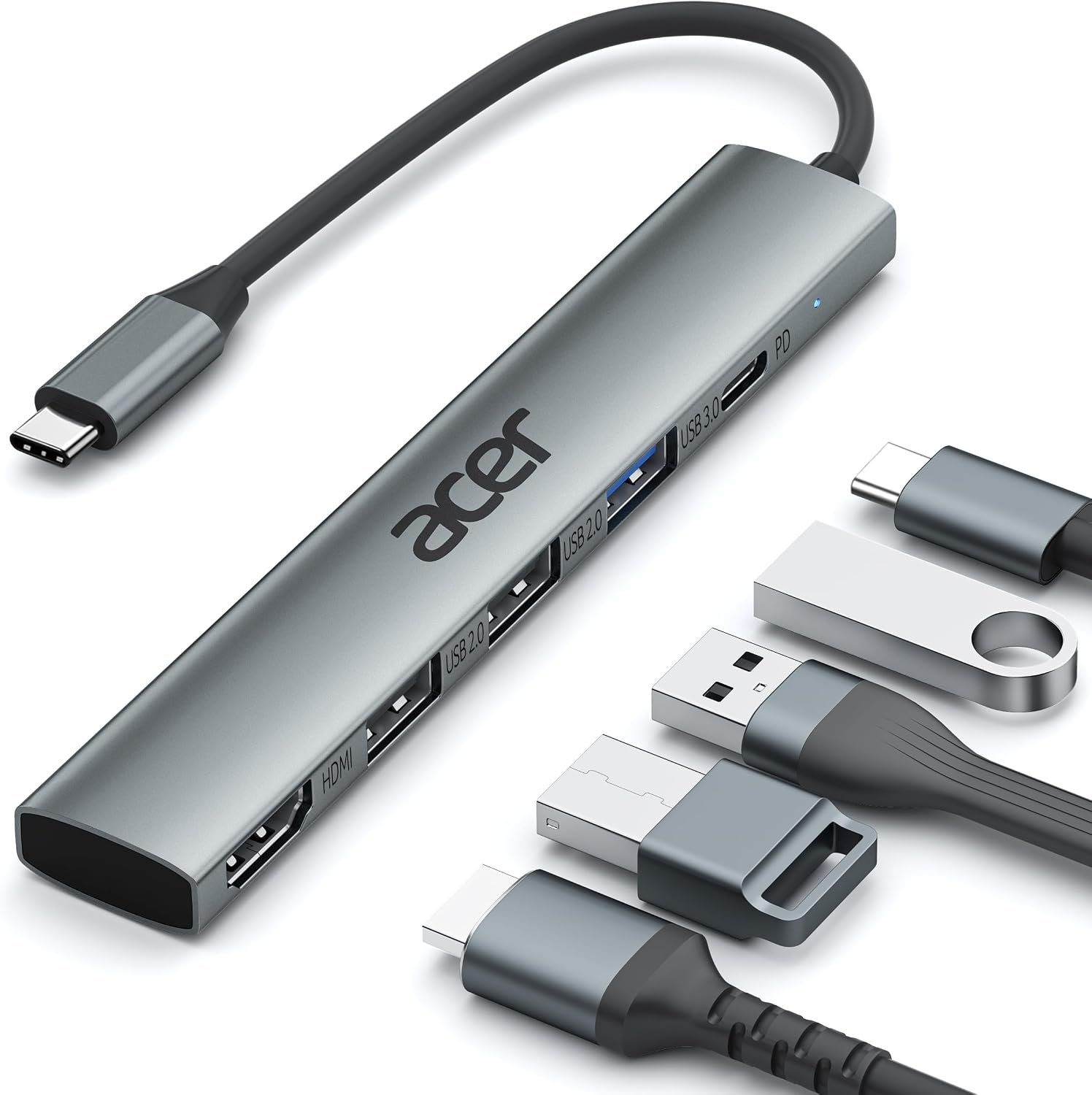
Modern laptops and tablets have become thinner, lighter, and increasingly dependent on USB-C connections. That design trend has several advantages, particularly for portability, but it can also create a practical problem: a computer may have only a small number of physical ports available for accessories.
A single USB-C connection can support considerably more than charging or basic data transfer. Depending on the computer’s hardware and USB-C implementation, it can also carry video signals and connect to a variety of peripherals. A USB-C hub takes advantage of that capability by providing several additional ports through one host connection.
The Acer 5-in-1 USB-C Hub with 4K HDMI, 100W Power Delivery, and three USB-A data ports is designed for this type of setup. The model associated with the product listing is identified as ODK4C0, and Acer’s own documentation for its 5-in-1 Type-C dongle identifies USB-C as the host interface, 100W USB Power Delivery, HDMI connectivity, and support for Windows, macOS, and ChromeOS.
Product information for this particular 5-in-1 configuration identifies one HDMI output supporting up to 4K at 30Hz, one USB-C Power Delivery input supporting up to 100W, one USB 3.0 port, and two USB 2.0 ports. The USB 3.0 connection is listed with data-transfer capability of up to 5Gbps.
This combination makes the hub relevant to people who want to connect a laptop to an external display while also using traditional USB accessories and charging the host computer through a single USB-C connection.
A USB-C hub is not a replacement for a full docking station in every situation, though. It is a compact connectivity accessory, and understanding its limitations is just as important as understanding its features.
This guide looks at how the Acer 5-in-1 USB-C hub works, what its ports can be used for, how 4K HDMI output and USB Power Delivery fit into a workstation, what types of users may find this format useful, and what should be checked before connecting it to a computer.
What Is a 5-in-1 USB-C Hub?
A USB-C hub acts as a connection point between a computer and several external devices.
Instead of plugging a monitor, keyboard, mouse, USB storage device, and charger into separate ports on the computer, a compatible USB-C hub can consolidate several of those connections through one host USB-C port.
The term “5-in-1” refers to the hub’s five available downstream functions in this particular configuration:
- One HDMI display output
- One USB-C Power Delivery port
- One USB 3.0 data port
- Two USB 2.0 data ports
The computer connects to the hub through its integrated host USB-C connection.
It is important to distinguish the hub’s host connection from its USB-C Power Delivery port. The host USB-C connection is what connects the hub to the computer. The separate PD port is intended for passing power to the host computer and is not presented as another general-purpose USB-C data or video port. Product information specifically notes that the PD port is for charging the host and does not provide data transfer or video output.
That distinction can prevent confusion when planning a workstation.
Key Features of the Acer 5-in-1 USB-C Hub
4K HDMI Output
One of the most useful features for laptop users is the HDMI display output.
The product information identifies HDMI output up to 4K at 30Hz.
A 4K resolution provides 3840 × 2160 pixels, giving an external display substantially more pixel density than a conventional 1080p display.
However, resolution and refresh rate are separate specifications.
A display can support 4K resolution while operating at a lower refresh rate. This hub’s listed 4K mode is 30Hz, which can be suitable for many productivity tasks, document work, presentations, browsing, and video playback. It may be less appropriate for users who specifically need higher refresh rates at 4K for demanding gaming or specialized visual workflows.
The actual output also depends on the computer’s USB-C capabilities, the HDMI display, the cable, and the operating system.
100W Power Delivery
The USB-C Power Delivery port is specified for up to 100W of power input. Acer’s official 5-in-1 product documentation confirms 100W USB Power Delivery support.
This does not mean that every laptop will receive 100W.
Power Delivery is negotiated between the charger, hub, and host device. The laptop itself determines how much power it can accept, and the charger must also be capable of supplying the required power.
For example, if a laptop is designed to accept less than 100W, connecting it to a 100W-capable charger does not force the laptop to consume 100W.
Similarly, the hub’s PD rating should not be confused with the wattage supplied by the charger. The charger is a separate component.
A suitable setup therefore consists of:
USB-C charger → hub’s PD port → host laptop
The hub passes compatible power through to the computer while the other ports remain available for peripherals.
Three USB-A Data Ports
The hub provides three USB-A ports, with one identified as USB 3.0 and two as USB 2.0 in the available product specifications.
This combination is useful because many accessories still use USB-A connectors.
Examples include:
- Keyboards
- Mice
- USB flash drives
- External storage
- Webcams
- Printers
- Game controllers
- USB receivers
- Other compatible peripherals
The USB 3.0 port is the appropriate choice when higher transfer speeds are useful. Product information lists data transfer up to 5Gbps for the USB 3.0 connection.
The two USB 2.0 ports are better suited to peripherals where extremely high data-transfer rates are not the main requirement.
Understanding USB 3.0 vs. USB 2.0
The difference between the USB-A ports matters when deciding where to connect devices.
USB 3.0
The USB 3.0 port is designed for higher-speed data transfer and is more appropriate for devices such as external SSDs, USB flash drives, and other storage hardware where transfer performance matters.
The advertised maximum is up to 5Gbps under the applicable USB specification, although actual transfer speeds can be lower depending on the connected device, file type, computer, and other factors.
USB 2.0
USB 2.0 provides considerably lower theoretical bandwidth, but that does not make it unsuitable for ordinary peripherals.
A keyboard or mouse, for example, does not require the bandwidth of a high-speed external SSD.
Using the USB 2.0 ports for low-bandwidth accessories can therefore leave the USB 3.0 port available for devices that benefit more from faster connectivity.
How the Hub Can Be Used at a Home Office
A laptop can become the center of a desktop workstation with relatively few accessories.
For example, the Acer hub can connect a compatible laptop to:
- An HDMI monitor
- A keyboard
- A mouse
- An external USB device
- A USB-C charger
This arrangement allows the laptop to remain the main computer while the external display provides a larger working area.
When the workday is finished, the hub can remain connected to the desk while the laptop is disconnected from the single host USB-C connection.
This is one of the practical advantages of a compact USB-C hub: it can reduce the number of cables that need to be connected directly to the laptop.
Creating a Larger Display Setup
Many laptops have relatively small built-in displays.
An external monitor can provide additional workspace for documents, spreadsheets, browser windows, design applications, or communication tools.
The HDMI output on this hub can support a compatible external display at up to 4K/30Hz.
Depending on the operating system, the external screen can generally be configured for mirroring or extended desktop use when supported by the computer.
Mirror Mode
Mirroring displays the same general content on both screens.
This can be useful for presentations because the laptop user can see the same content that is being shown on the external display.
Extended Desktop
An extended desktop treats the external monitor as an additional workspace.
This can be useful for multitasking. A browser window, document, communication application, or reference material can remain on one display while the main task occupies the other.
The available display modes ultimately depend on the host computer and operating system.
Using the Hub for Presentations
A USB-C hub can be particularly useful for people who regularly connect laptops to projectors, conference-room displays, or televisions.
Instead of requiring a laptop with a built-in HDMI port, a compatible USB-C computer can use the hub’s HDMI output.
Before a presentation, it is sensible to verify the connection in advance.
Display compatibility depends on the computer’s USB-C implementation, HDMI cable, display input, resolution, refresh rate, and operating system.
A presentation environment is not the ideal place to discover that the laptop’s USB-C port does not support video output.
Using It With External Storage
External storage devices are another common reason for using a USB-C hub.
A USB flash drive or external SSD can connect through one of the hub’s USB-A ports.
For faster storage devices, the USB 3.0 port is the logical choice because it offers the higher bandwidth of the three USB-A data connections. Product specifications identify the USB 3.0 port with transfer rates up to 5Gbps.
The two USB 2.0 ports remain useful for accessories that do not require high-speed transfers.
Actual file-copy performance will always depend on the storage device and the complete connection chain.
Using It With Keyboard and Mouse
A keyboard and mouse are relatively low-bandwidth devices, making them well suited to USB 2.0 connections.
This can be an efficient way to preserve the faster USB 3.0 port for external storage.
For example:
- USB 2.0 port: keyboard
- USB 2.0 port: mouse
- USB 3.0 port: external storage
- HDMI: monitor
- USB-C PD: charger
That arrangement uses all of the hub’s primary functions while matching different peripherals with appropriate ports.
Who May Find This Type of USB-C Hub Useful?
Remote Workers
Remote workers often switch between a portable laptop configuration and a more traditional desktop workspace.
A compact hub can simplify the transition by allowing a monitor, keyboard, mouse, and charger to remain connected at the desk.
Students
Students may use a laptop both at home and at school.
A small multiport hub can provide access to traditional USB accessories and external displays without requiring a large docking station.
Laptop Users With Limited Ports
Some modern laptops provide only a few USB-C ports.
When one port needs to accommodate several types of accessories, a hub can expand the number of available connections.
MacBook Users
Compatible MacBook models can benefit from USB-C connectivity when their hardware supports the required display and data functions.
However, MacBook compatibility should be verified by model rather than assumed from the presence of USB-C alone.
Windows Laptop Users
The hub can also be relevant to compatible Windows systems. Acer’s official specifications list Windows, macOS, and ChromeOS among supported operating systems for the 5-in-1 Type-C dongle.
Tablet Users
Some USB-C tablets can use external displays and USB peripherals.
Whether every hub function works depends on the tablet’s hardware and operating system. A USB-C connector does not automatically guarantee video output.
Important Compatibility Considerations
USB-C Does Not Always Mean Video Output
This is one of the most important points when buying a USB-C hub.
USB-C describes the connector shape, not necessarily every function supported by the port.
For HDMI output through this type of hub, the host USB-C port needs to support video output, commonly through DisplayPort Alt Mode.
Product information for the Acer hub specifically notes that the USB-C host port should support DP Alt Mode for HDMI output.
If a laptop has a USB-C port that supports charging and data but not video output, plugging the hub into that port will not automatically create an HDMI display connection.
Users should check the computer manufacturer’s specifications before relying on external display functionality.
Check the Laptop’s Power Requirements
The hub supports up to 100W Power Delivery, but the computer’s own requirements remain important.
A high-performance laptop may require a particular wattage to operate and charge normally under heavy workloads.
The charger should therefore be selected according to the laptop manufacturer’s recommendations.
The hub is a pass-through accessory; it does not create electrical power by itself.
HDMI 4K Does Not Mean 4K at Every Refresh Rate
The hub’s listed maximum HDMI mode is 4K at 30Hz.
This distinction matters for users comparing different display requirements.
For office work, browsing, writing, presentations, and many general applications, 30Hz may be sufficient.
For users who specifically require 4K at 60Hz or higher, a different hub or docking solution may be necessary.
USB Port Bandwidth
The three USB-A ports do not all provide identical performance.
One is USB 3.0 and two are USB 2.0 according to the product specifications.
Users working with high-speed storage should therefore pay attention to which port they use.
USB-C Hub vs. Full Docking Station
A USB-C hub and a docking station overlap in function, but they are not necessarily designed for the same role.
Compact USB-C Hub
A compact hub generally focuses on a handful of common connections.
Its advantages can include:
- Small physical footprint
- Portability
- Simple setup
- Fewer cables
- Convenient everyday connectivity
The Acer 5-in-1 format follows this approach.
Full Docking Station
A larger docking station may provide a much wider selection of ports.
Depending on the model, a docking station may include:
- Multiple display outputs
- Ethernet
- SD and microSD card readers
- Additional USB-C connections
- More USB-A ports
- Audio
- Higher-speed networking
- More extensive display configurations
A docking station may be more appropriate for a permanent office workstation with many peripherals.
The smaller hub can make more sense when only a few additional connections are required.
USB-C Hub vs. Simple USB Adapter
A basic USB-C-to-USB-A adapter generally converts one connector type into another.
A multiport hub goes further by combining several functions into one device.
The Acer 5-in-1 model adds HDMI and Power Delivery alongside multiple USB-A ports.
That makes it more useful for workstation expansion, but also means compatibility should be checked for every function rather than simply asking whether the laptop has USB-C.
Understanding Power Delivery in Everyday Use
Power Delivery can be confusing because the number printed on a charger or hub does not necessarily represent the amount of power the computer will always receive.
A 100W-capable PD port means the system can support power delivery up to that level under the appropriate conditions.
The actual charging level is negotiated.
Several factors influence it:
- Laptop power requirements
- Charger capacity
- USB-C PD profiles
- Cable capabilities
- Hub design
- Computer workload
A laptop performing demanding tasks may consume considerably more power than it does while idle.
Consequently, “100W PD” should be understood as a maximum supported capability rather than a promise that every connected laptop will charge at 100W.
Using the Hub While Traveling
Portability is one of the main reasons people choose a compact USB-C hub rather than a larger docking station.
A small hub can travel with a laptop in a sleeve, backpack, or computer case.
This can be useful for people who regularly move between:
- Home
- Office
- Classroom
- Meeting rooms
- Hotels
- Coworking spaces
- Client locations
Instead of carrying separate adapters for HDMI and USB accessories, a single multiport hub can cover several common connectivity needs.
Acer’s official specifications classify the 5-in-1 Type-C dongle as portable and lightweight, with an approximate weight of 48 grams for the referenced model.
The exact physical specifications should be confirmed against the Amazon listing for the particular configuration because product variants can differ.
Aluminum Construction and Compact Form
Available product specifications for the ODK4C0 identify an aluminum enclosure and a compact physical design.
A metal enclosure can provide a rigid exterior while maintaining a relatively compact form.
The physical size also matters when the hub is used with a laptop on a crowded desk. A small adapter is less likely to occupy valuable workspace than a large docking unit.
At the same time, compact electronics should not be treated as indestructible. The hub should be protected from excessive bending, crushing, moisture, and unnecessary strain on the host connection.
Managing Multiple Connected Devices
Connecting several devices through one hub concentrates the workstation’s connectivity into a single USB-C connection.
This can simplify the desk, but it also creates a single point of dependency.
If the host USB-C connection is disconnected, the attached USB devices and external display may also lose their connection.
For that reason, users should make sure the host cable is not under unnecessary tension.
Avoid placing the hub where the laptop could pull on it when moved.
Cable management can also reduce accidental disconnections.
Potential Limitations to Keep in Mind
No compact hub can provide every possible connectivity feature.
The Acer 5-in-1 model does not appear to include dedicated Ethernet, SD card, microSD, audio, or additional USB-C data ports in the five listed functions.
That is not necessarily a problem. It simply means the hub is designed around a particular set of needs.
Users who regularly work with cameras and memory cards, wired networking, multiple monitors, or many USB devices may need a more comprehensive docking solution.
Similarly, users seeking 4K at 60Hz should pay attention to the hub’s specified 4K/30Hz HDMI capability.
Understanding these limitations before choosing a connectivity accessory can help prevent mismatched expectations.
Practical Setup Example for a Home Office
Consider a laptop user who works primarily from home.
The laptop connects to the hub through USB-C.
An HDMI monitor connects to the hub.
A keyboard and mouse use the two USB 2.0 ports.
An external SSD connects to the USB 3.0 port.
A compatible USB-C charger connects to the PD input.
The result is a workstation where the laptop needs only one host connection.
When the user wants to leave the desk, the host connection can be disconnected and the laptop can be taken away while the monitor and peripherals remain connected to the hub.
The exact behavior depends on the computer and operating system, but this illustrates why multiport hubs can simplify a laptop-centered workspace.
Practical Setup Example for Students
A student may use a laptop for writing and research while occasionally connecting it to an external monitor or classroom display.
The HDMI output can provide access to a compatible external screen.
A USB keyboard or mouse can use the USB-A ports.
A flash drive can use the USB 3.0 port when higher transfer performance is needed.
The same hub can then travel with the student rather than remaining permanently attached to one desk.
Practical Setup Example for Presentations
A presenter can keep the hub connected to the laptop and use its HDMI output when connecting to an external display.
The USB-A ports can remain available for a wireless keyboard receiver, presentation accessory, or other compatible peripheral.
The PD port can allow the laptop to remain connected to compatible USB-C power.
This setup can reduce the number of separate adapters needed, but presentation equipment should always be tested before an important meeting.
Frequently Asked Questions
What does a 5-in-1 USB-C hub do?
A 5-in-1 USB-C hub expands one compatible USB-C host connection into several ports. This Acer configuration provides HDMI, USB-C Power Delivery, one USB 3.0 port, and two USB 2.0 ports.
Does the Acer hub support 4K HDMI?
Yes. Product information for this model identifies HDMI output up to 4K at 30Hz.
Does it support 4K at 60Hz?
The available product specifications identify 4K at 30Hz, not 4K at 60Hz. Users who specifically require 60Hz at 4K should consider a hub or dock that explicitly supports that output mode.
Does the hub support 100W charging?
Its USB-C Power Delivery port is specified for up to 100W. The actual charging power depends on the charger, host computer, cable, and the laptop’s own power requirements.
Can the PD port transfer data?
The product information describes the PD port as a charging connection rather than a general-purpose USB-C data port. It is intended to provide power to the host device.
How many USB-A ports does it have?
The hub provides three USB-A data ports: one USB 3.0 port and two USB 2.0 ports.
What is the USB 3.0 port useful for?
It is useful for peripherals that benefit from higher data-transfer bandwidth, such as external storage devices and compatible high-speed USB accessories. The listed maximum is up to 5Gbps.
Can I use the hub with a MacBook?
Compatible MacBook models can use USB-C hubs, but the specific computer must support the required USB-C functions. In particular, HDMI output through the hub requires appropriate video support such as DisplayPort Alt Mode. Acer lists macOS among the supported operating systems for the 5-in-1 Type-C dongle.
Can I use it with Windows?
Acer lists Windows among the supported operating systems for the 5-in-1 Type-C dongle. The computer’s USB-C hardware still needs to support the functions being used.
Can it connect a laptop to a monitor and charge the laptop simultaneously?
That is one of the intended configurations. A compatible HDMI display can connect to the hub while a USB-C charger is connected to the PD port. Actual charging and display functionality depend on the laptop and its USB-C capabilities.
Does USB-C automatically support HDMI through this hub?
No. The laptop’s USB-C port must support the appropriate video-output functionality. Product information specifically notes the requirement for DP Alt Mode.
Is a USB-C hub the same as a docking station?
Not exactly. A hub generally provides a smaller collection of common ports, while a docking station may offer a larger range of connections and more extensive display, networking, and peripheral support.
Is the hub useful for external storage?
Yes. The USB-A ports can connect compatible storage devices. The USB 3.0 port is the more appropriate choice when higher data-transfer performance is important.
Can all three USB-A ports be used at the same time?
The hub is designed with three USB-A data ports, but the practical result depends on the connected devices and available USB bandwidth and power. High-demand peripherals may share resources through the hub.
Does the hub replace a laptop charger?
No. The PD port is designed to pass power from a compatible USB-C charger to the host computer. A charger is still required.
Is 100W enough for every laptop?
No. Laptop power requirements vary. The 100W figure represents the maximum supported PD capability rather than a guarantee that every laptop will receive or require 100W.
Conclusion
The Acer 5-in-1 USB-C Hub with 4K HDMI, 100W Power Delivery, and three USB-A data ports is designed to address a common challenge with modern laptops: limited physical connectivity.
Its combination of HDMI output, USB-A connectivity, and USB-C Power Delivery allows a compatible laptop to connect to an external display, traditional USB peripherals, and a charger through a compact accessory. Acer’s official documentation identifies 100W Power Delivery, HDMI connectivity, a USB-C host interface, and compatibility with Windows, macOS, and ChromeOS for its 5-in-1 Type-C dongle.
The three USB-A ports are also differentiated by speed. One is USB 3.0 with listed transfer capability up to 5Gbps, while two are USB 2.0 connections that are more suitable for lower-bandwidth peripherals such as keyboards and mice.
The HDMI capability deserves particular attention. The hub supports up to 4K at 30Hz according to available product specifications, while the host computer needs a USB-C port capable of video output through technologies such as DisplayPort Alt Mode.
The 100W Power Delivery capability is similarly useful but should be understood correctly. It represents the hub’s supported maximum rather than a promise that every laptop will charge at that rate. The actual charging level depends on the laptop, charger, cable, and USB-C Power Delivery negotiation.
For remote workers, students, laptop-based home offices, and people who regularly move between workspaces, this type of compact hub can provide a convenient middle ground between a basic adapter and a larger docking station. It provides several common connections without requiring a much larger desktop accessory.
At the same time, users who need multiple monitors, Ethernet, memory-card readers, additional USB-C data connections, audio ports, or 4K/60Hz display output may need a more comprehensive docking solution.
The most important step is therefore to match the hub’s capabilities with the computer and the intended workflow. Check the laptop’s USB-C specifications, confirm video-output support, verify charging requirements, and understand the differences between the USB 3.0 and USB 2.0 ports.
Leave a Reply